How to Password-Protect a PDF Before Sharing It
Password protection is most useful when the password, delivery method, and final-file checks are treated as one complete workflow.

Protection is a complete sharing workflow
A PDF password is useful when a file should not open without a secret. The protection is only as strong as the password, the way it is delivered, and the care taken with unprotected copies. Treat those choices as one workflow rather than a final checkbox.
The smallpdf.app Protect PDF tool creates an encrypted PDF that requires an opening password. Use it only for documents you are authorized to protect, and make sure the intended recipient can receive the password separately.
Prepare the final document first
Finish editing, organizing, and signing before applying protection. Open the unprotected final copy and check:
- the page count and order;
- names, dates, totals, and signature placement;
- whether comments, form values, or attachments reveal unintended information;
- that no draft or internal page remains in the file.
Encrypting a file does not correct its contents. It can also make later changes less convenient, so protect the version you are ready to deliver and keep an appropriate working original according to your retention needs.
Create a strong, unique password
Prefer a long password or passphrase that is not reused for email, banking, or another document. Length matters, and a few unrelated words are generally easier to communicate accurately than a short collection of substitutions. Avoid details a recipient or third party could guess, such as a surname, birthday, invoice number, or the word “password.”
If your organization has password rules, follow them. A password manager can generate and store a unique value. Before protecting the PDF, confirm the password twice so a typing mistake does not lock everyone out.
- Choose the finished PDF in the protection tool.
- Enter and confirm the strong password.
- Create the protected copy and save it with a name that distinguishes it from the original.
- Close the PDF, reopen the protected copy, and enter the password yourself.
- Check the first page, last page, and any critical form or signature.
Send the password separately
Do not place the password in the same email or message as the encrypted PDF. If someone gains access to that one conversation, they would have both pieces. Use a separate channel agreed with the recipient—for example, send the file by email and provide the password in a phone call or separate secure message.
Confirm the recipient’s identity before sharing the password, especially when the document contains financial, medical, employment, or identification information. Avoid including the password in the file name, subject line, or a note inside the same archive.
Understand what a PDF password does not do
An opening password controls access to the encrypted file. Once an authorized person opens it, they may be able to save, print, copy, photograph, or redistribute its contents. Password protection does not revoke a copy already delivered, expire it automatically, prove who opened it, or replace a secure document portal when one is required.
It also does not remove sensitive content. If information must be permanently removed, use a proper redaction process and verify the result. Covering text with a shape or deleting a visible layer may leave the underlying content recoverable.
Plan for recovery and follow-up
Store the password in an approved secure place for as long as the document must remain accessible. If the recipient cannot open the file, first verify that they downloaded the attachment completely and are using the exact password, including capitalization and punctuation. If necessary, confirm the protected copy works on your side before creating another version.
When you are authorized to remove protection from a file and know its password, follow the guide to unlocking a PDF before using the Unlock PDF tool. The result is an unprotected working copy, so handle it carefully after the opening-password barrier is removed.

How to Unlock a PDF When You Know the Password
Unlocking a PDF removes its opening-password barrier from a new copy. Use the valid password, verify the result, and protect the unencrypted file appropriately.
How to Flatten a PDF Form or Annotation Safely
Flattening can make completed forms and annotations display more consistently, but it removes editability and can affect signatures and other interactive behavior.
How to Compress a PDF Without Sacrificing Readability
Useful PDF compression is not just about the smallest number. Choose a method that fits the document, then check readability and important features in the result.

Electronic vs. Digital Signatures: What’s the Difference?
A signature drawn on a PDF and a certificate-backed digital signature can look similar while providing very different evidence.
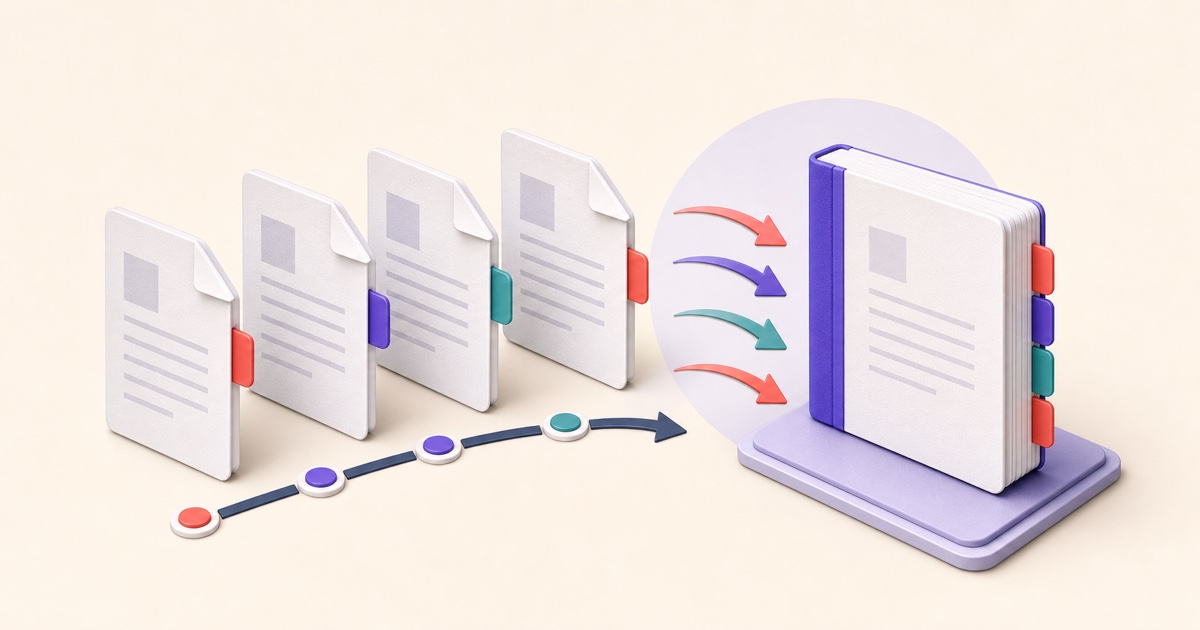
How to Merge PDF Files in the Right Order
A reliable merge starts before you click the final button. Use this workflow to prepare, order, combine, and check a multi-file PDF.
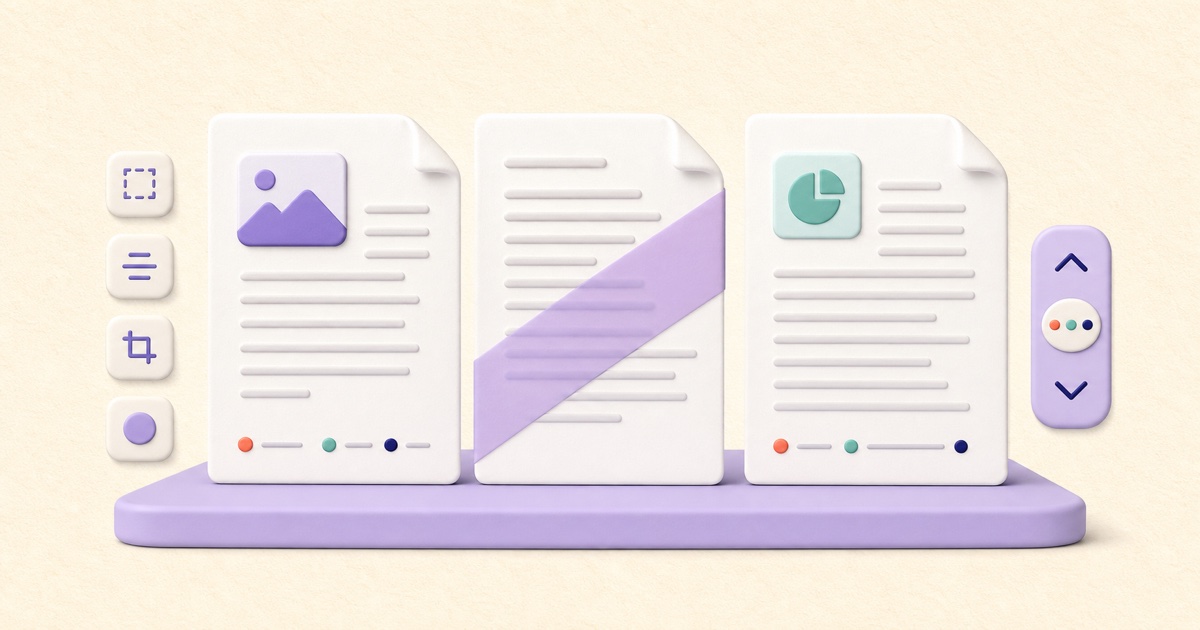
How to Add Page Numbers or a Watermark to a PDF
Page numbers help navigation; watermarks communicate status. Choosing and placing them well prevents avoidable confusion.