How to Merge PDF Files in the Right Order
A reliable merge starts before you click the final button. Use this workflow to prepare, order, combine, and check a multi-file PDF.
Start with the order you want to deliver
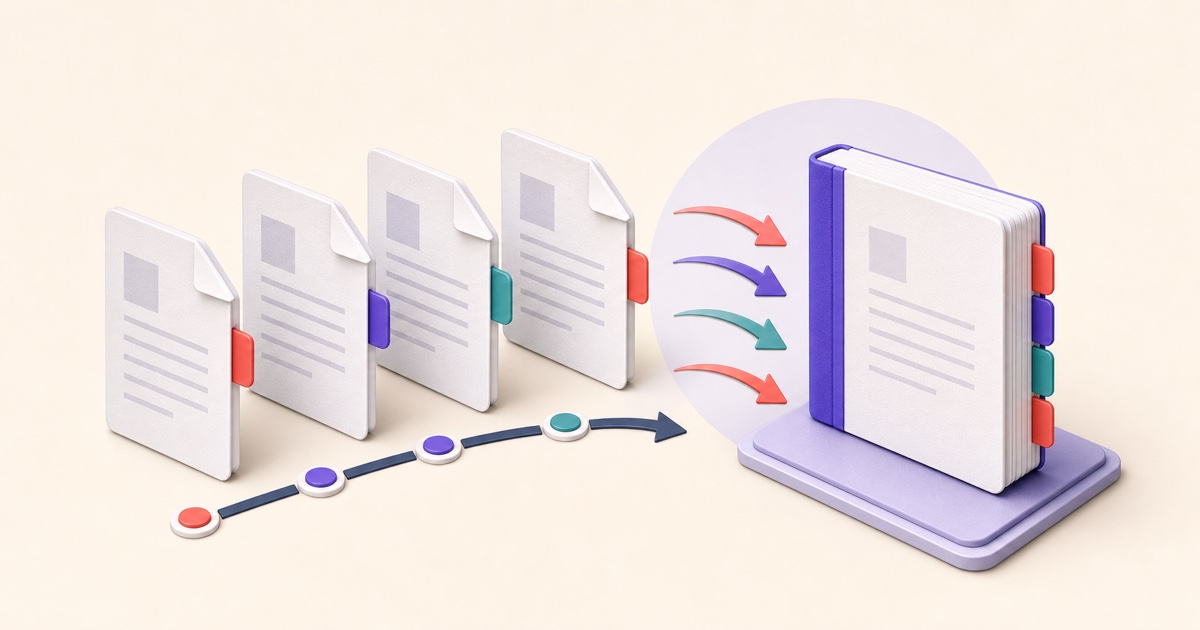
Merging is more than placing several files in one container. The finished PDF should tell the same story a reader would get if the documents were handed over as a carefully arranged stack. Decide that sequence before opening the merge tool.
A useful first pass is to write down the major sections: cover letter, main document, supporting material, and appendices. Then place each source file under the right section. When file names are vague, temporarily rename local working copies with a short sequence such as “cover,” “report,” and “appendix.” The names do not appear as page numbers in the merged PDF, but they make the source list easier to review.
Use a reliable merging workflow
- Open every source PDF first. Confirm that each file opens, contains the expected pages, and is not an outdated draft.
- Remove material you should not share. Delete empty scans, duplicate cover sheets, and internal notes before combining files.
- Add the PDFs to the merge tool. Drag them into the intended order. Treat the first item as the beginning of the final document.
- Review the list from top to bottom. Check similar file names carefully and make sure appendices follow the section that refers to them.
- Create the merged PDF. Save it as a new file so the sources remain available if another revision is needed.
- Open and inspect the result. Check the first page, every transition between source files, and the last page.
The Merge PDFs tool lets you arrange files before creating the combined copy. If the file order is correct but pages inside one source are not, fix that source with Organize PDF first.
Check page-level order, not only file order
A merge list can look perfect while the final reading order is still wrong. One source may contain a landscape insert turned sideways, a scanned back page before its front page, or a blank sheet introduced by duplex scanning. Review page thumbnails when possible, especially around the boundaries between files.
Also watch for page references in the content. A cover letter that says “see Appendix A” should precede that appendix. A signature page usually belongs immediately after the agreement it completes. If a table of contents has fixed page numbers, verify them after merging because the new document may have a different page sequence.
Know what merging may change
Most ordinary PDFs merge cleanly, but some document features deserve an extra check:
- Bookmarks and links: confirm that important navigation still points to the intended page.
- Forms: fields from different files can share the same internal name. Fill and test the merged copy before relying on it.
- Digital signatures: changing a signed PDF, including merging it, can invalidate certificate-backed signatures. Keep signed originals and follow the recipient’s required process.
- Mixed page sizes: letter, A4, and scanned pages can coexist, but the change may be distracting when printed or viewed one page at a time.
- Security settings: a protected source may need the authorized password before it can be processed.
Finish with a delivery check
Open the output in the viewer your recipient is likely to use. Move through it in single-page and thumbnail views, search for a phrase from a text page, and zoom into at least one scan. If the document will be printed, check orientation and page size as well.
Use a clear final name that distinguishes the combined copy from its sources. If the document contains sensitive information, apply password protection only after the content and order are final, then send the password through a separate channel. A two-minute review at this stage is much easier than explaining a missing or misplaced page after delivery.
Split vs. Extract PDF Pages: Which Should You Use?
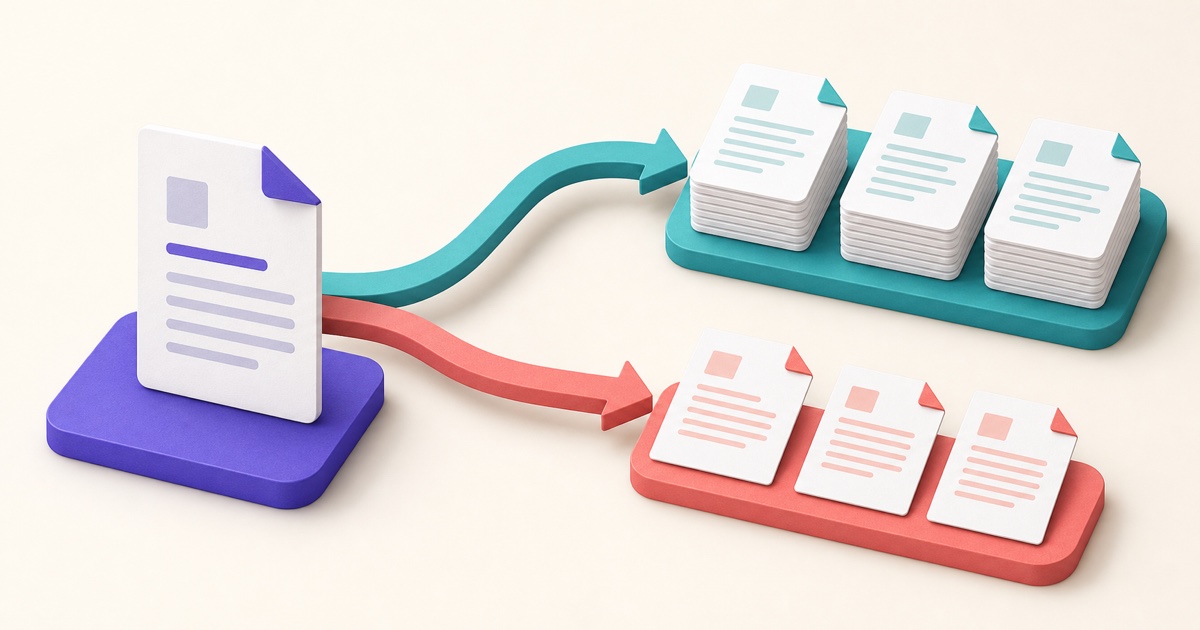
Splitting and extracting both create new PDFs, but they solve different document problems. This guide makes the choice straightforward.
How to Reorder, Rotate, Remove, and Extract PDF Pages
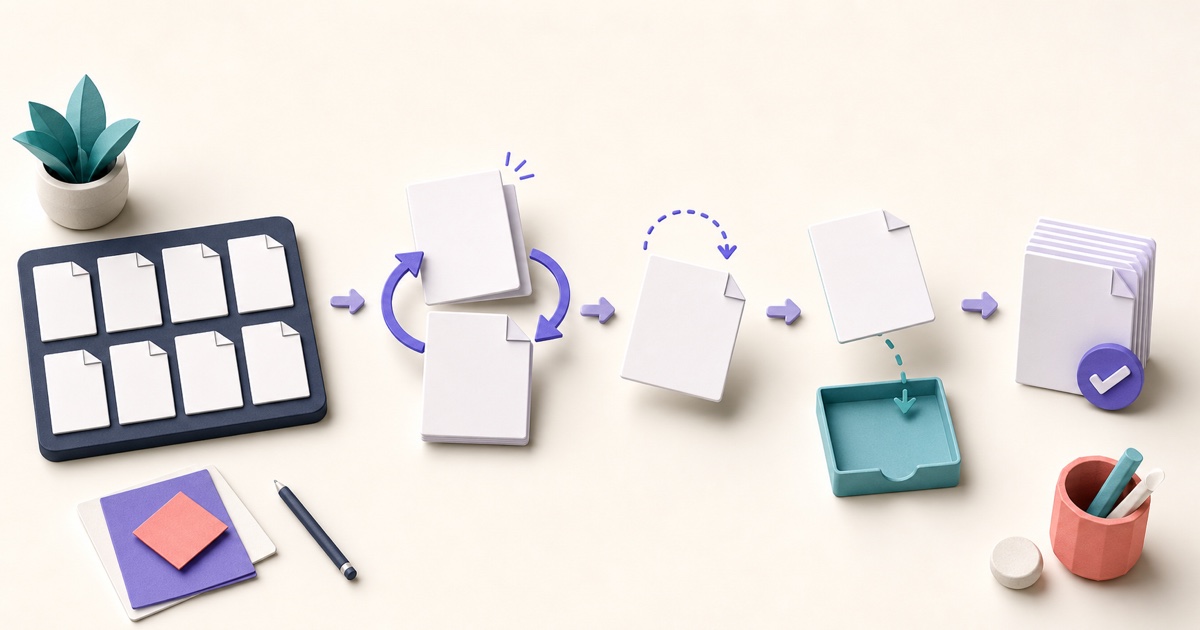
Page-level cleanup is easier when you review the whole document first and make changes in a deliberate order.

How to Password-Protect a PDF Before Sharing It
Password protection is most useful when the password, delivery method, and final-file checks are treated as one complete workflow.

How to Combine JPG, PNG, and BMP Images into One PDF
A clean image-based PDF starts with page order, orientation, margins, and a final check that every image remains readable.
TXT vs. HTML to PDF: Which Source Format Should You Use?
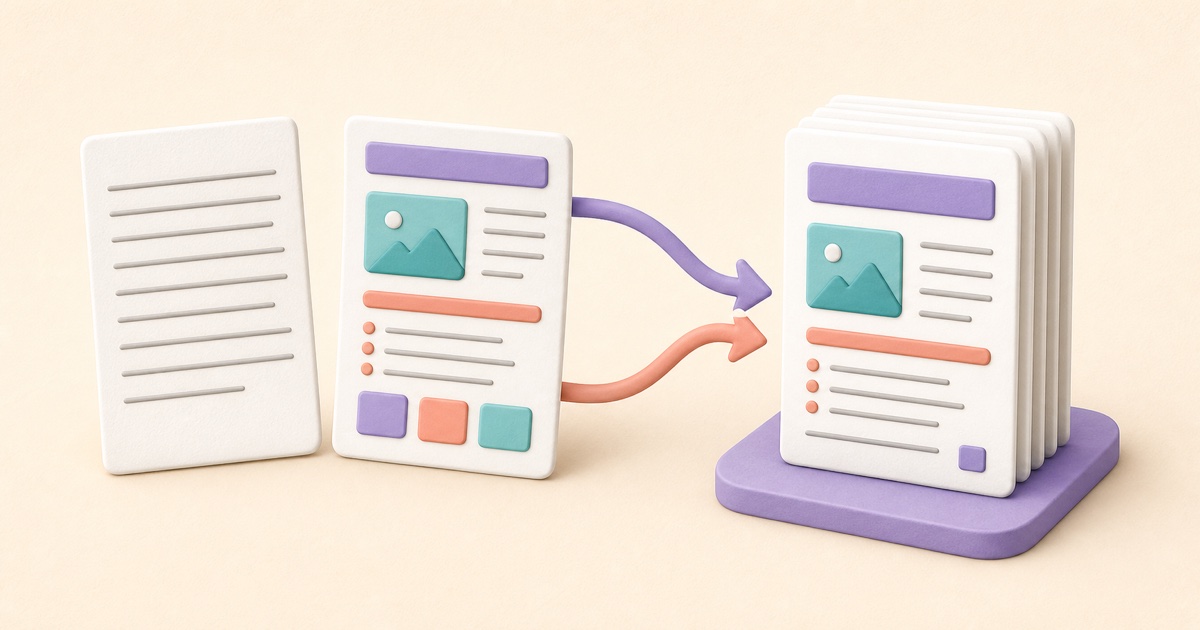
TXT is best for plain content; supported HTML adds document structure. The right source prevents formatting surprises.