How to Reorder, Rotate, Remove, and Extract PDF Pages
Page-level cleanup is easier when you review the whole document first and make changes in a deliberate order.
Review the whole document before changing a page
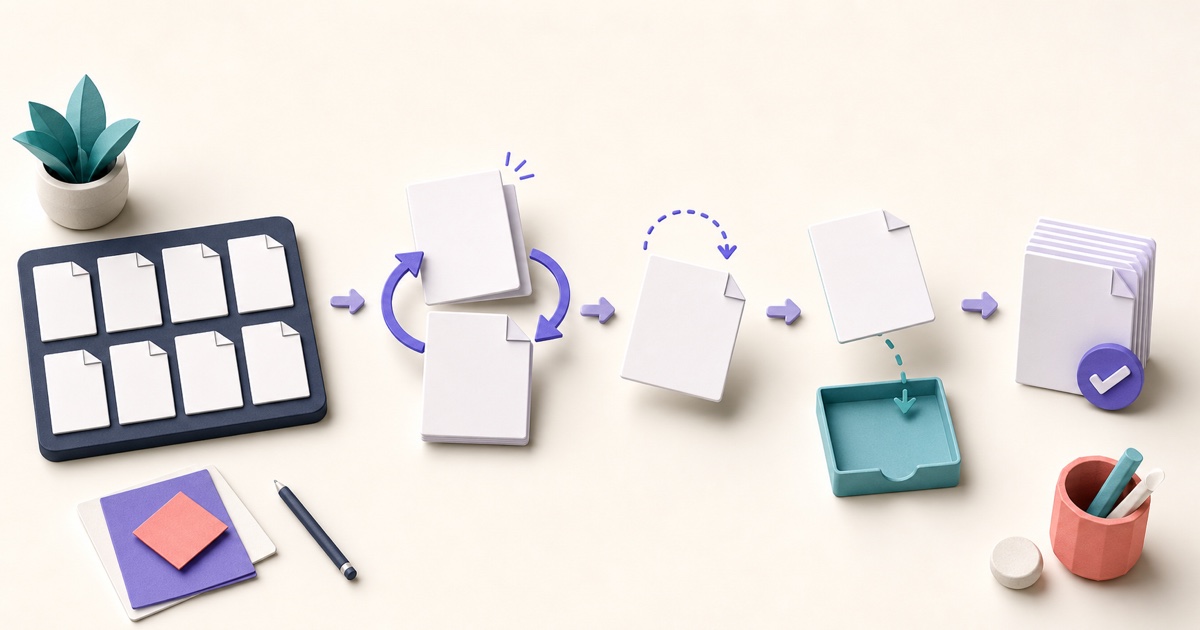
Page cleanup is fastest when you understand the document first. Open the PDF, scan its thumbnails from beginning to end, and note every required change. Look for pages that are out of order, sideways scans, accidental blanks, duplicates, and sections that belong in a separate file.
Write a short plan before editing, especially for a long document. For example: “move the cover to the front, rotate pages 4 and 5, remove duplicate page 12, extract the appendix.” A plan prevents page numbers from becoming confusing as pages move or disappear.
Make changes in a deliberate order
The Organize PDF tool combines common page operations in one workspace. A dependable sequence is:
- Reorder first. Drag pages into their intended reading sequence while every page is still present.
- Rotate second. Correct sideways or upside-down pages after they are in place.
- Remove third. Delete confirmed blanks, duplicates, or pages that should not be delivered.
- Extract last. Create a separate PDF from selected pages after the main document’s order is settled.
- Review and export. Compare the result with your original plan before saving the final copy.
This is a helpful default, not a rigid rule. The key is to avoid repeatedly translating old page numbers after each deletion. If you only need one operation, a focused tool such as Rotate PDF, Delete PDF Pages, or Extract PDF Pages may be quicker.
Reorder by content, not thumbnail appearance
Small thumbnails can make similar pages look identical. Before moving one, zoom in and identify a heading, date, section label, or the last sentence that continues onto the next page. For scanned two-sided documents, check that every front is followed by its matching back.
After reordering, read the transitions. Confirm that paragraphs continue naturally, tables are not separated from their headings, and appendices follow their references. If the document contains a contents page with fixed page numbers, it may need to be updated separately.
Rotate the page, not just the view
Many viewers can temporarily turn a page on screen without changing the saved PDF. A page-rotation tool writes the intended orientation into the output. Check mixed-orientation documents carefully: a wide chart may be correctly landscape even when the surrounding report is portrait.
Rotation can interact with crop boxes, annotations, and form fields in complex PDFs. After export, inspect any page containing comments, links, signatures, or fillable fields to make sure those elements still align with the visible page.
Remove and extract with context in mind
Before deleting a page, confirm it is truly unnecessary. An apparently blank sheet may preserve intentional duplex printing, separate confidential sections, or carry a form field that is not obvious in the thumbnail. Deleting pages is also not secure redaction: sensitive information on retained pages or in other document structures may remain.
Extraction copies selected pages into a new PDF. Decide whether the extracted pages should remain in the main document as well. If you need several continuous output files rather than a custom selection, splitting the PDF may express the task more clearly.
Validate the exported PDF
Open the saved output rather than relying only on the editor preview. Check the page count, first and last page, every rotation, and each place where pages were moved or removed. Search for a known phrase to confirm that text remains usable where expected, and zoom into a scan to check readability.
Forms, bookmarks, links, attachments, and certificate-backed signatures deserve extra attention. Page changes can break navigation or invalidate signatures. Preserve signed originals and use the workflow required by the document owner or recipient.
Finally, give the output a clear name and avoid overwriting the only copy of the source. A well-organized PDF should be easy for the next reader to understand without knowing how much cleanup happened behind the scenes.

How to Crop PDF Pages and Remove Unwanted Margins
Cropping can make uneven scans and oversized margins easier to read, but the best result depends on consistent framing and a careful page-by-page review.

How to Scan Documents to PDF with Clear, Consistent Pages
A useful scanned PDF begins with complete, evenly lit photos. Cropping and filters can improve presentation, but they cannot restore missing detail or make text searchable.
Split vs. Extract PDF Pages: Which Should You Use?
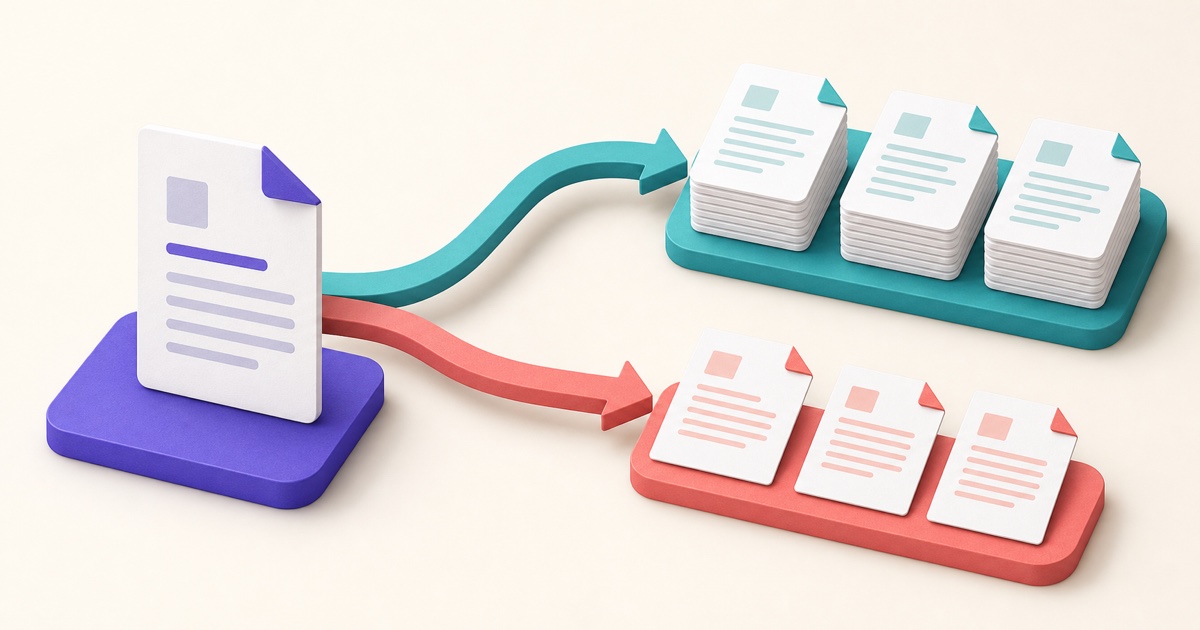
Splitting and extracting both create new PDFs, but they solve different document problems. This guide makes the choice straightforward.
How to Merge PDF Files in the Right Order
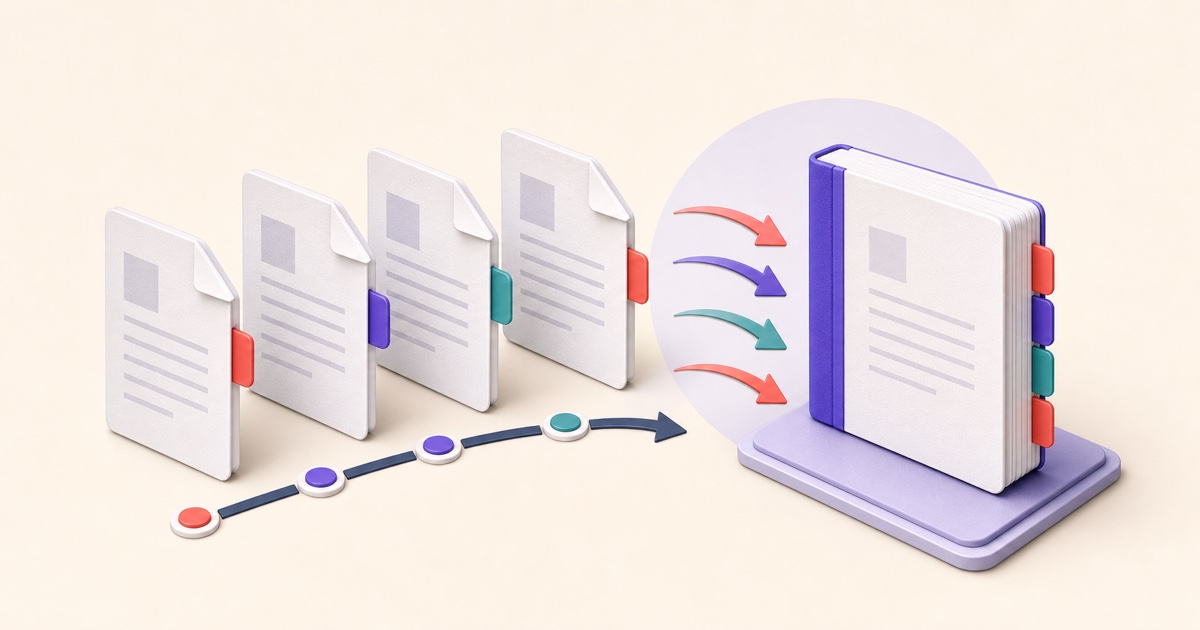
A reliable merge starts before you click the final button. Use this workflow to prepare, order, combine, and check a multi-file PDF.

How to Edit PDF Text and Add Images or Markup
PDF editing is safer when you check whether text replacement is direct, OCR-based, or visual, review every page, and keep an untouched source.
How to Add Page Numbers or a Watermark to a PDF
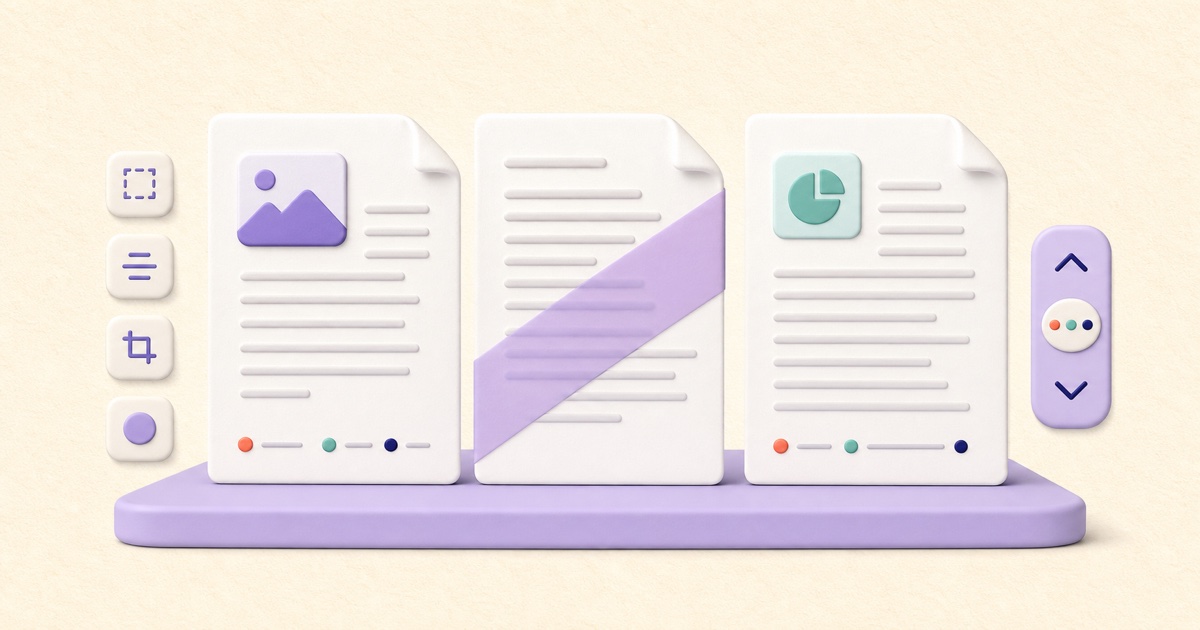
Page numbers help navigation; watermarks communicate status. Choosing and placing them well prevents avoidable confusion.