How to Crop PDF Pages and Remove Unwanted Margins
Cropping can make uneven scans and oversized margins easier to read, but the best result depends on consistent framing and a careful page-by-page review.
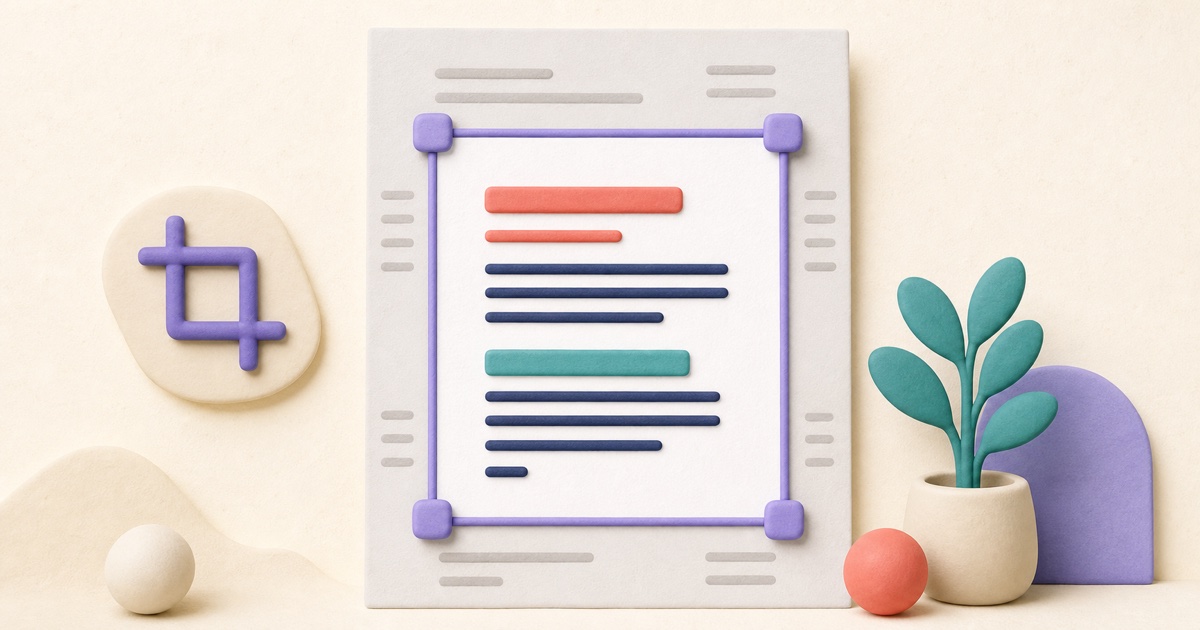
Decide what the crop should accomplish
PDF pages sometimes contain wide scanner borders, mismatched margins, unwanted headers, or a large page area around a small piece of content. Cropping changes the area a viewer displays, which can make the document easier to read and print without rebuilding every page.
The smallpdf.app Crop PDF tool lets each page use its own crop area or applies one selection to every page. Before adjusting anything, decide whether the problem is consistent across the document. A uniform stack of scanned pages may need one shared crop, while mixed receipts, landscape inserts, or rotated pages usually need individual attention.
Know what a PDF crop really changes
A PDF page can contain several boundary boxes. The crop box tells compatible viewers which portion of the page should be visible. Changing it normally clips the displayed area; it does not necessarily delete text, images, annotations, or metadata outside that area.
If sensitive content must be permanently removed, use an approved secure-redaction workflow and verify that the underlying text, image data, comments, and metadata are gone. Cropping is a presentation tool, not a security control.
Set a safe crop area
- Choose a page that represents the document well.
- Drag the retained area or adjust the top, right, bottom, and left inset controls.
- Leave a small buffer around text, signatures, page numbers, stamps, and handwritten notes.
- Move through the document and compare pages with different layouts or rotations.
- Apply the crop to all pages only when the same boundary is safe everywhere.
- Create the cropped copy, download it, and inspect the actual result.
A crop that looks correct on a cover page can cut into a footer later. Duplex scans may alternate left and right margins, and inserted landscape pages may need completely different boundaries. Review page types rather than assuming the first preview represents the whole file.
Account for rotation and existing page boundaries
Rotated PDF pages can be confusing because the stored coordinate system and the displayed orientation are not always the same. A good cropping tool translates the visible selection into the appropriate PDF crop box, but the final downloaded copy still needs review in a normal PDF reader.
Existing crop boxes also matter. A PDF may already hide printer marks or scanner edges. Cropping again should work within the currently displayed page instead of unexpectedly revealing or shifting hidden areas. If a page looks unusual, reset its crop and compare it with the source before continuing.
Choose between per-page and document-wide cropping
Use one crop across all pages when the pages came from the same scanner setup, share a consistent size, and keep important content in the same region. Individual crops are safer for combined documents, receipts, certificates, book spreads, photos, or pages with notes close to an edge.
- Consistent office scans: a shared crop can remove the same dark border efficiently.
- Mixed page sizes: inspect and crop pages separately.
- Alternating margins: check odd and even pages before applying one setting.
- Edge-to-edge content: preserve extra space to avoid clipping during printing.
Verify the downloaded PDF
Open the result and check every page at fit-to-page size, then zoom in on content near each edge. Confirm the page count, orientation, links, comments, form fields, and visible signatures. Print a representative page if physical output matters, because printers often impose their own non-printable margins or scaling.
If the document also needs reordering or rotation, complete those page-level changes in the Organize PDF tool and then crop the stable result. Keep an untouched original until the cropped copy has passed its final review.

How to Edit PDF Text and Add Images or Markup
PDF editing is safer when you check whether text replacement is direct, OCR-based, or visual, review every page, and keep an untouched source.
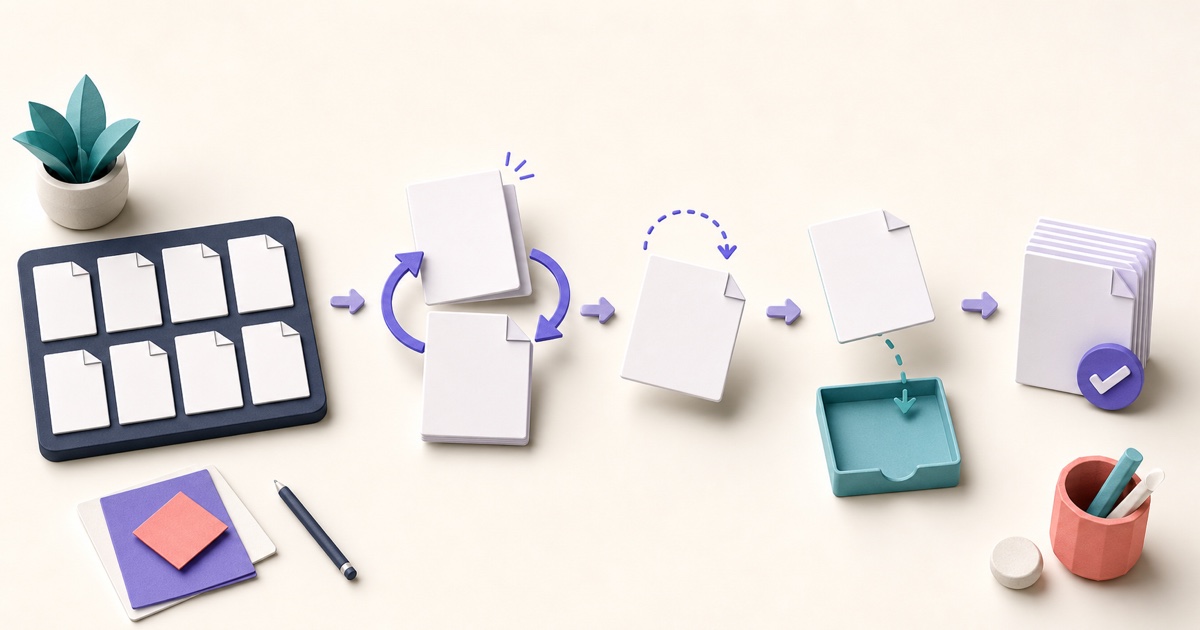
How to Reorder, Rotate, Remove, and Extract PDF Pages
Page-level cleanup is easier when you review the whole document first and make changes in a deliberate order.

How to Scan Documents to PDF with Clear, Consistent Pages
A useful scanned PDF begins with complete, evenly lit photos. Cropping and filters can improve presentation, but they cannot restore missing detail or make text searchable.