Split vs. Extract PDF Pages: Which Should You Use?
Splitting and extracting both create new PDFs, but they solve different document problems. This guide makes the choice straightforward.
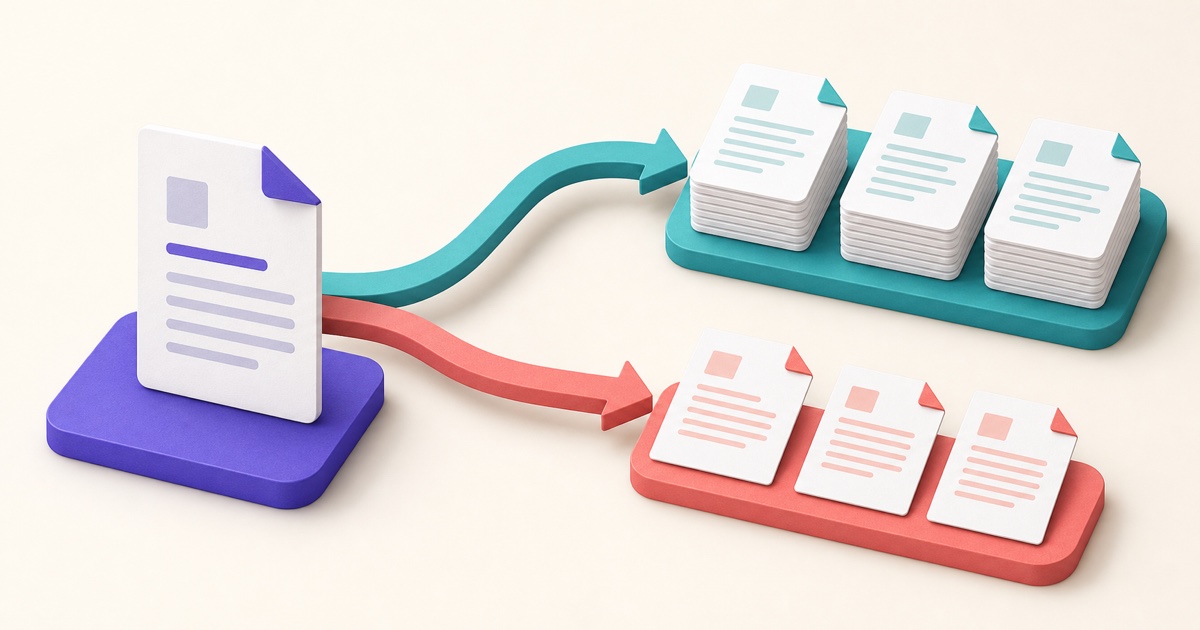
The difference is the selection pattern
Both splitting and extracting create new PDFs from an existing document. The practical difference is how you choose pages. Splitting divides a document into ranges or repeated groups. Extracting selects particular pages and places only those pages into a new file.
Think of a 60-page handbook. If each chapter occupies a continuous range, splitting can create one PDF per chapter. If you only need the title page, a checklist on page 18, and a form on page 57, extraction is the more direct choice.
| Goal | Choose | Example |
|---|---|---|
| Divide the whole file into predictable parts | Split | Pages 1–10, 11–20, and 21–30 |
| Create a new file from scattered pages | Extract | Pages 2, 8, and 19 |
| Separate one section and keep the rest together | Split or extract | Choose the method with the clearest page selection |
| Build a custom packet in a new order | Extract, then organize | Pages 9, 3, and 14 |
When splitting is the better fit
Use the Split PDF tool when the boundaries are easy to describe as ranges. Typical examples include separating monthly statements, dividing a scan into one file per case, or breaking a long report into sections that are easier to send.
Before you split, identify the first and last page of every intended part. Do not rely only on printed page numbers: a PDF may include an unnumbered cover or contents page, so printed “page 1” might actually be PDF page 3. Use the page position shown by the viewer or tool.
Choose names that explain what each output contains. A sequence such as “Part 1,” “Part 2,” and “Part 3” is fine for a temporary workflow; descriptive names are safer when the files will be shared independently.
When extraction is the better fit
Use Extract PDF Pages when the pages are selective or non-contiguous. Extraction is useful for creating a short review packet, sending only the relevant pages from a reference manual, or saving one completed form from a larger bundle.
List the required pages before selecting them. If order matters, decide whether the new PDF should follow the source order or a custom reading order. After extraction, open the result and make sure no page depends on context that was left behind—such as a chart without its legend or a signature page without the agreement.
A simple decision process
- Write down exactly what each new file should contain.
- If the selections cover the document as consecutive ranges, split it.
- If you need a handful of selected pages, extract them.
- If pages also need to move, rotate, or be removed, use Organize PDF for the combined page-level workflow.
- Open every output and compare its first and last page with your plan.
Check features that cross page boundaries
Page operations can affect more than visible content. Bookmarks may point to pages that are no longer present. Links, form fields, and page labels may need review. Certificate-backed digital signatures can become invalid when a signed file is changed, so keep the signed source and confirm the required process before modifying it.
Finally, check whether the selected pages reveal more than intended. Headers, footers, comments, attachments, and form values can carry context beyond the main page text. If the goal is to withhold sensitive information, removing pages is not a substitute for a proper redaction workflow.
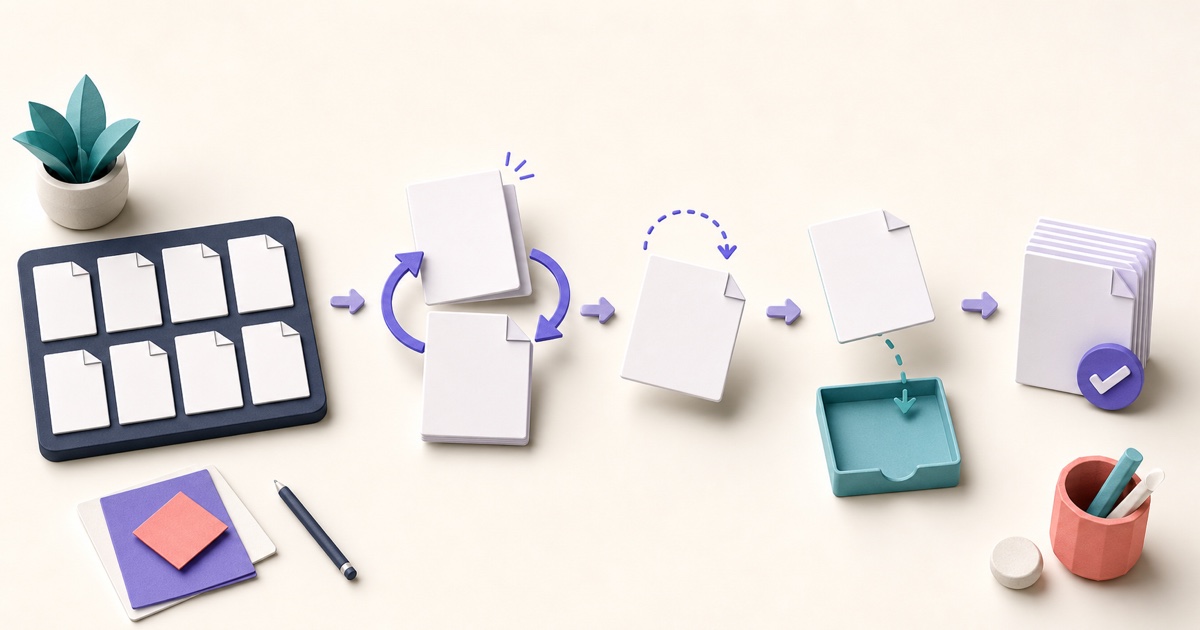
How to Reorder, Rotate, Remove, and Extract PDF Pages
Page-level cleanup is easier when you review the whole document first and make changes in a deliberate order.
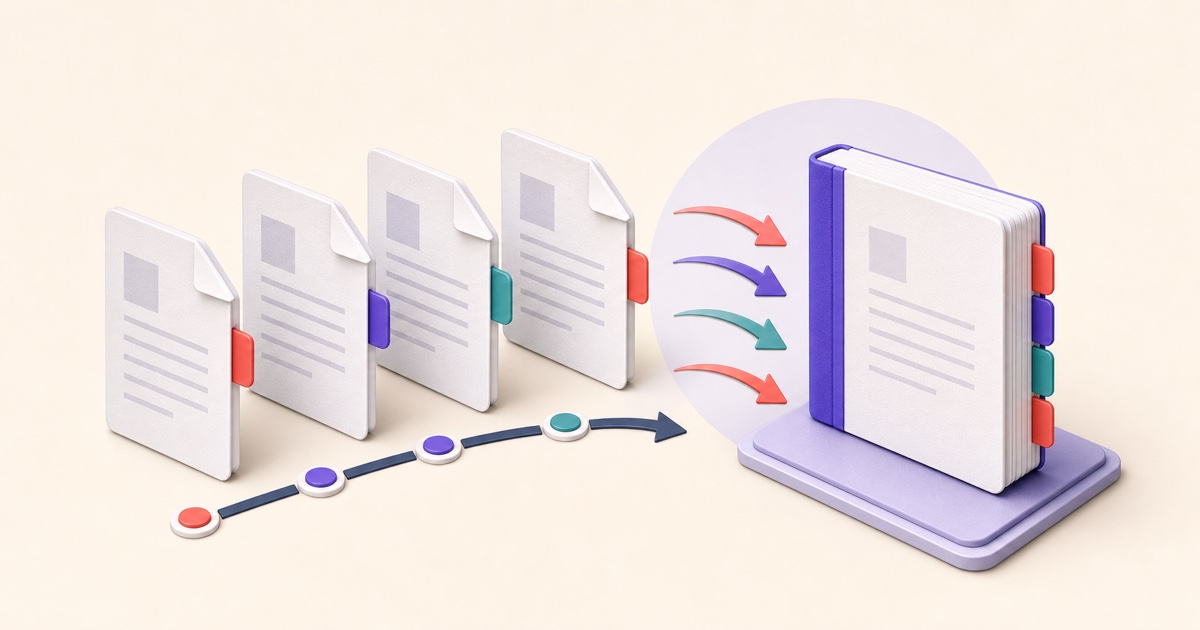
How to Merge PDF Files in the Right Order
A reliable merge starts before you click the final button. Use this workflow to prepare, order, combine, and check a multi-file PDF.