TXT vs. HTML to PDF: Which Source Format Should You Use?
TXT is best for plain content; supported HTML adds document structure. The right source prevents formatting surprises.
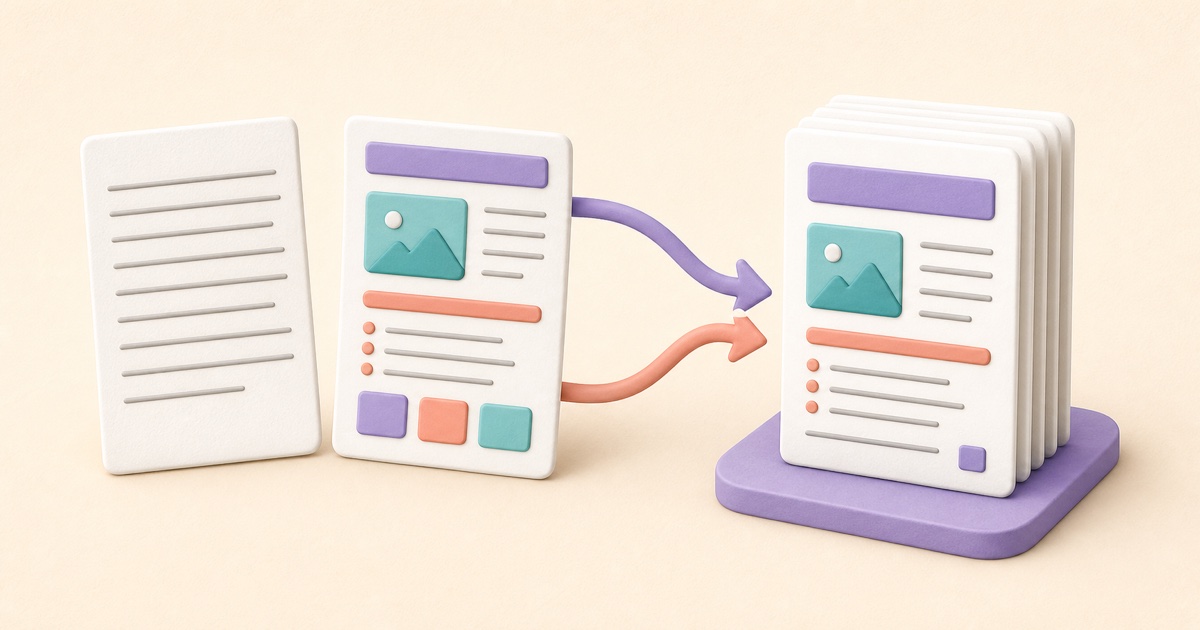
Choose the source based on structure
TXT and HTML can both become readable PDFs, but they describe content differently. A TXT file contains plain characters, line breaks, and spacing. HTML uses elements such as headings, paragraphs, lists, links, tables, and images to express document structure. The better source is the simplest one that represents what the finished document needs.
Use the smallpdf.app TXT to PDF tool for notes, transcripts, drafts, logs, and other plain text. Use HTML to PDF for document-style content that benefits from headings, emphasis, lists, links, tables, or embedded images.
Use TXT when the words are the document
TXT is a strong choice when formatting is secondary to clear, predictable text. Upload a valid UTF-8 file or type and paste content directly into the editor. Uploaded text remains editable before conversion, so you can correct spacing, remove an accidental line, or add a heading in plain text.
The finished PDF preserves intentional line breaks, blank lines, and paragraphs. You can choose A4 or Letter, portrait or landscape orientation, margins, font size, line spacing, and optional page numbers. Plain text does not contain bold, italic, table, image, or heading instructions, so those features cannot be inferred reliably from a TXT source.
Use HTML for supported document structure
HTML is useful when the source already distinguishes headings from paragraphs or needs lists, links, tables, inline emphasis, and supported images. The converter turns those elements into a paginated document using the selected page size, orientation, margins, body size, line spacing, and page-number setting.
This is document conversion rather than a screenshot of a live webpage. It does not reproduce an arbitrary site’s complete layout. Page scripts, forms, frames, external assets, and custom CSS are not included. PNG and JPEG images must be embedded in the HTML as data URLs rather than loaded from a remote address.
| Requirement | TXT | HTML |
|---|---|---|
| Plain paragraphs and line breaks | Best fit | Supported |
| Headings, lists, and emphasis | Not encoded | Supported |
| Tables and embedded images | Not supported | Supported within the documented subset |
| Scripts or full webpage styling | Not applicable | Not supported |
Prepare the source before conversion
For TXT, confirm the file uses UTF-8 and review long unbroken lines that may wrap awkwardly. For HTML, use meaningful elements and keep the structure simple. Make sure table content can fit the selected page width and that embedded images are appropriately sized for a document.
In either tool, edit the source before creating the PDF. Choose a page orientation that suits the content: portrait for ordinary prose and landscape when a wide table genuinely needs more room. Use margins and line spacing that keep longer documents comfortable to read.
Check pagination and output details
Open the downloaded PDF and inspect every page break. Look for headings left alone at the bottom of a page, split lists, crowded tables, clipped links, oversized images, and unexpected blank pages. Check characters outside basic English carefully, especially when the document mixes alphabets or unusual symbols.
If several finished PDFs must become one package, create and verify each source document first, then combine them with Merge PDFs. If an image is the true source rather than part of a structured document, use Images to PDF so page order and image fitting remain explicit.
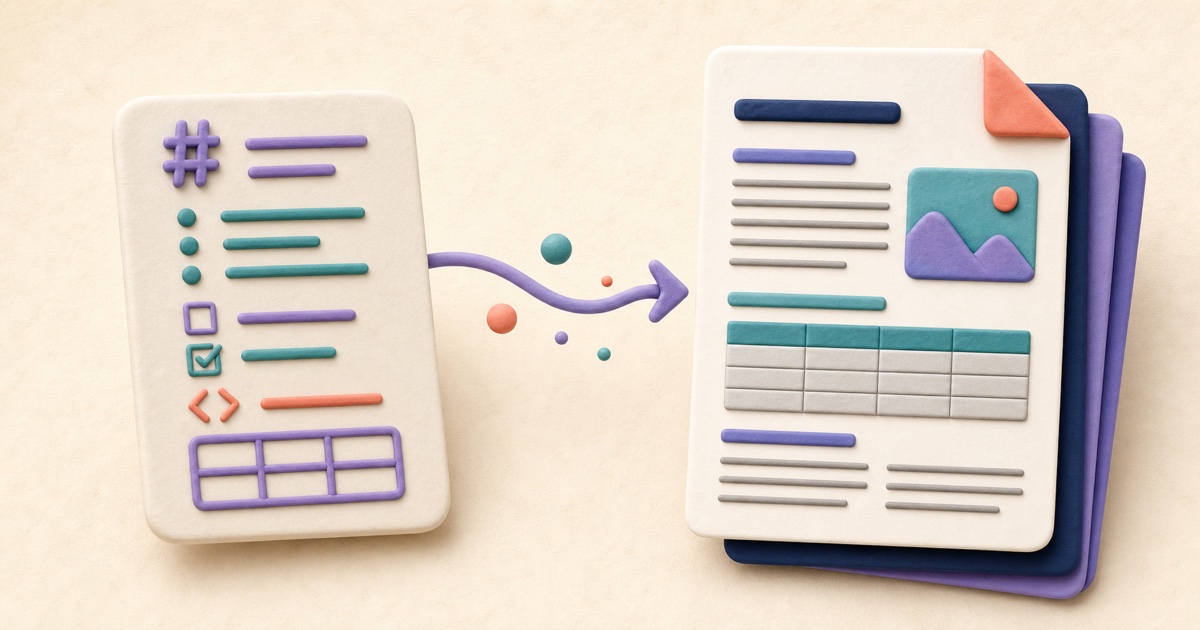
How to Convert Markdown to PDF Without Formatting Surprises
Markdown is compact and portable, but a reliable PDF still depends on supported syntax, sensible page settings, and a final pagination review.

How to Combine JPG, PNG, and BMP Images into One PDF
A clean image-based PDF starts with page order, orientation, margins, and a final check that every image remains readable.
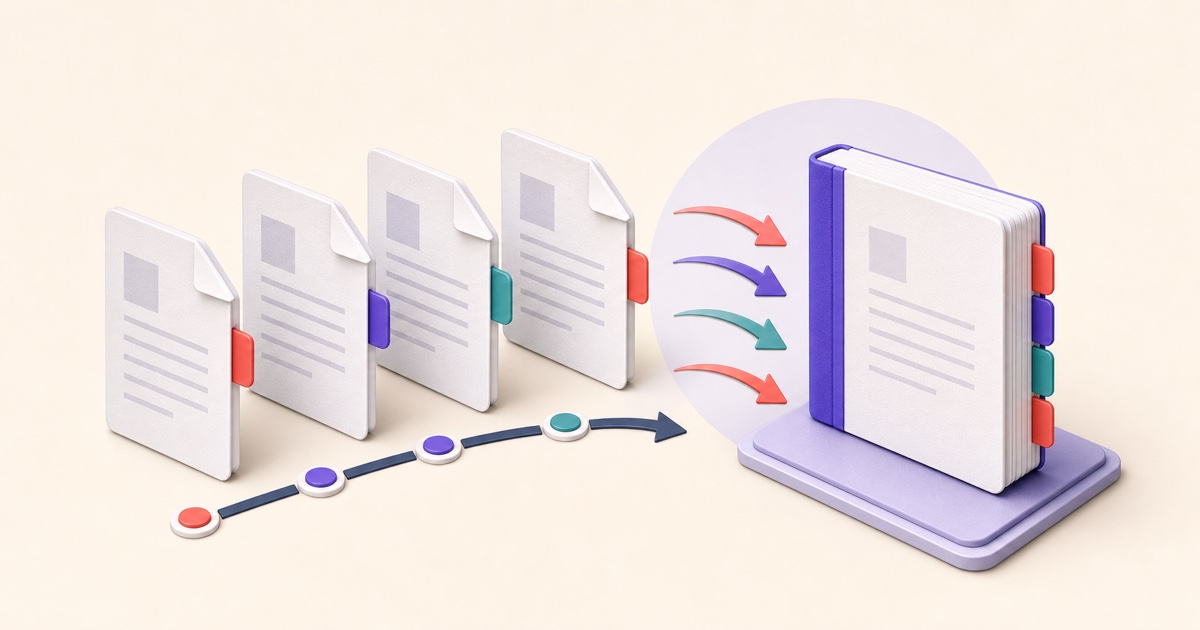
How to Merge PDF Files in the Right Order
A reliable merge starts before you click the final button. Use this workflow to prepare, order, combine, and check a multi-file PDF.
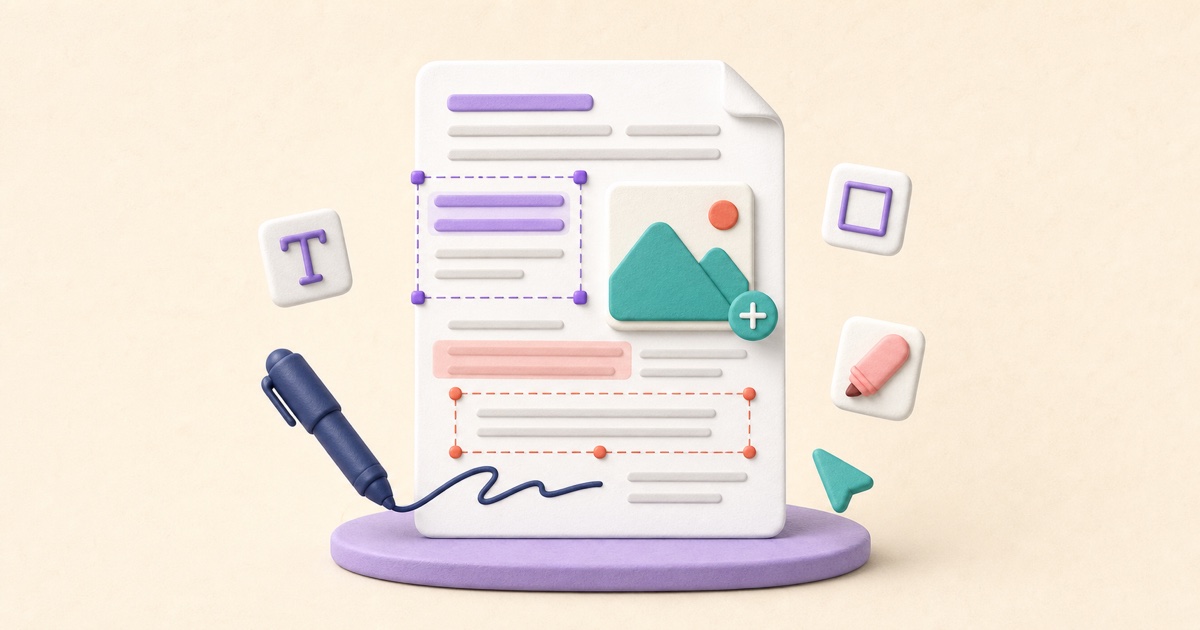
How to Edit PDF Text and Add Images or Markup
PDF editing is safer when you check whether text replacement is direct, OCR-based, or visual, review every page, and keep an untouched source.