How to Convert Markdown to PDF Without Formatting Surprises
Markdown is compact and portable, but a reliable PDF still depends on supported syntax, sensible page settings, and a final pagination review.
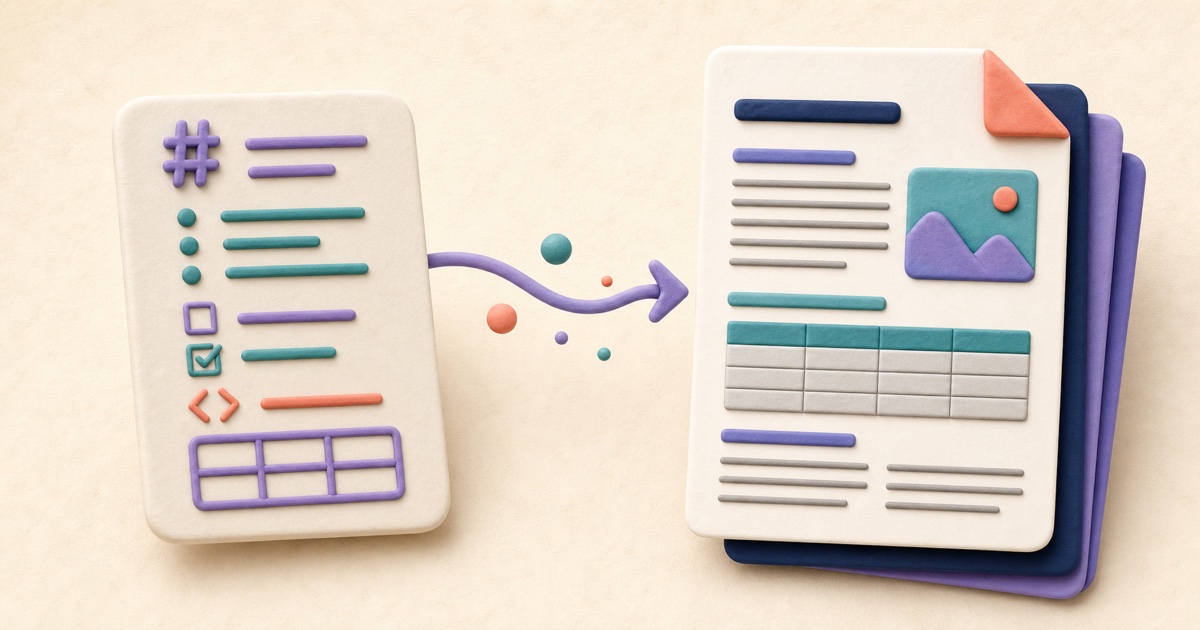
Start with the Markdown the converter understands
Markdown is useful because a small amount of punctuation can express a document’s structure. The smallpdf.app Markdown to PDF tool supports the syntax most often needed for reports, notes, technical instructions, project updates, and handouts: headings, bold and italic emphasis, safe links and autolinks, ordered and unordered lists, nested lists, quotes, inline code, syntax-highlighted fenced code blocks, thematic rules, aligned tables with inline formatting, task markers, strikethrough, highlights, definition lists, reference and inline footnotes, and TeX-style formulas.
You can paste source into the editor or upload a valid UTF-8 file with an .md or .markdown extension. The source remains editable, so fix unclear headings, inconsistent list indentation, or an unfinished table before creating the PDF.
Use Preview to check structure, not final pagination
Switch from Edit to Preview after the source is ready. Preview is most useful for confirming that headings have the intended level, emphasis surrounds the right words, nested items have the right depth, task markers are recognized, and table rows contain the expected cells. It is built from the same normalized document structure used for PDF generation.
The preview is not a picture of the final pages. Page size, orientation, margins, body size, line spacing, and page numbers are applied when the PDF is created, so final line wrapping and page breaks can differ. Treat Preview as a structure check and the downloaded PDF as the pagination check.
Write tables, tasks, and code deliberately
Tables work best when every row has a similar number of columns and cells contain concise text. A wide table may need landscape orientation, smaller body text, or shorter labels. Markdown alignment markers can describe the source table, but the PDF uses a consistent document-table style rather than copying arbitrary webpage styling.
Task list prefixes such as [ ] and [x] become visible unchecked and checked markers. Fenced code uses its language label to highlight common keywords, strings, numbers, and comments, while unknown or unlabeled languages remain readable code. For very long code lines, edit the source to add sensible breaks where possible.
| Source feature | PDF behavior | What to review |
|---|---|---|
| Nested lists | Indented list items with ordered or bullet markers | Indentation and numbering order |
| Task markers | Checked or unchecked list markers | Whether each task state is correct |
| Fenced code | Code block with language-aware highlighting when recognized | Language label, long lines, and page wrapping |
| GFM table | Structured rows and columns | Width, cell text, and orientation |
| Strikethrough | A line through the affected text | That only intended words are marked |
Add searchable formulas and footnotes
Wrap an inline formula in single dollar signs, such as $E = mc^2$, or in \( and \). Put a display formula between double dollar signs or \[ and \]. Common TeX notation—including Greek letters, relations, arrows, sums, integrals, fractions, roots, superscripts, subscripts, accents, named functions, and matrices—is converted into searchable mathematical text and set with the bundled math font.
Specialized TeX commands that the converter does not recognize remain visible in the document and produce a warning, so notation is never silently removed. Standard Markdown footnote references such as [^1] and inline notes such as ^[Note text] become raised markers, and their definitions are collected in a Footnotes section at the end.
Embed only suitable PNG or JPEG images
Remote image addresses, relative file paths, SVG files, and other unsupported sources are skipped. To include an image, use a base64 data URL containing PNG or JPEG data. A document can include up to 10 supported images, and each embedded image must be no larger than 2 MB. The tool reports a warning when it skips an image, so read the warning area before creating the final file.
Base64 image data makes Markdown source much larger and harder to edit. When images are the main content, Images to PDF is usually the clearer workflow. Use embedded Markdown images for supporting diagrams, screenshots, or figures that belong next to structured text.
Choose PDF settings for the content
A4 portrait with standard margins is a useful default for prose. Letter may fit a North American workflow, while landscape can help wide tables or long code samples. Larger body text and wider line spacing improve accessibility but create more pages. Page numbers are useful for review copies, printed documents, and longer reports.
The source is limited to 2 MB and 250,000 characters, and output is limited to 200 pages. These bounds keep conversion manageable. If a long document approaches them, divide the source by chapter, create and review each PDF separately, then combine the finished parts with Merge PDFs.
Review the downloaded PDF page by page
Open the completed file and scan every page. Confirm that headings do not become isolated at a page bottom, list items remain understandable across breaks, code is legible, tables fit within the page, links point to the intended destinations, images are present, and warnings did not identify omitted content. Check unusual symbols and mixed alphabets carefully as well.
If the source needs only plain text and line breaks, TXT to PDF is simpler. If it already uses supported document HTML, HTML to PDF offers direct element-based conversion. Markdown sits between those formats: compact to write, structured enough for common documents, and predictable when you preview and verify the result.
TXT vs. HTML to PDF: Which Source Format Should You Use?
TXT is best for plain content; supported HTML adds document structure. The right source prevents formatting surprises.

How to Combine JPG, PNG, and BMP Images into One PDF
A clean image-based PDF starts with page order, orientation, margins, and a final check that every image remains readable.
How to Merge PDF Files in the Right Order
A reliable merge starts before you click the final button. Use this workflow to prepare, order, combine, and check a multi-file PDF.