How to Flatten a PDF Form or Annotation Safely
Flattening can make completed forms and annotations display more consistently, but it removes editability and can affect signatures and other interactive behavior.
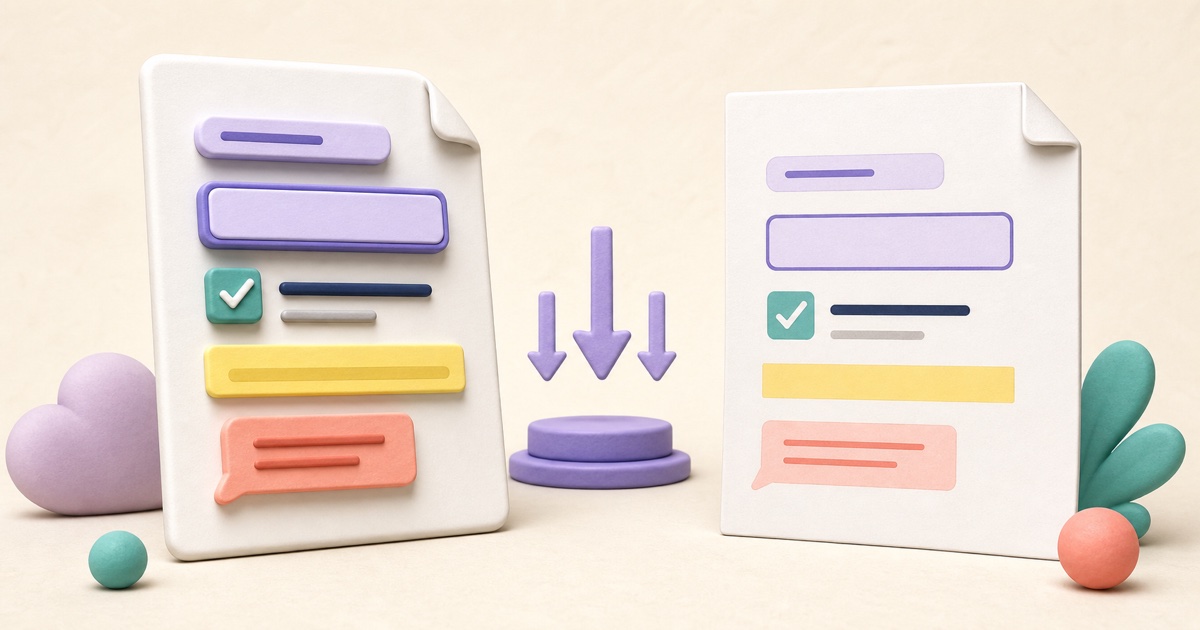
Understand the difference between visible and interactive content
A completed PDF can contain text fields, checkboxes, radio buttons, choice fields, comments, stamps, and other annotations that remain interactive. They may look like ordinary page content, but a viewer can still edit, hide, reset, or render them differently.
The smallpdf.app Flatten PDF tool turns supported visible form fields and annotations into fixed page content. The resulting copy is intended for consistent viewing and printing, not continued editing.
Use flattening for the right reason
Flattening can be helpful when a completed form must display the same way in different PDF viewers, when annotations should be fixed before printing, or when a recipient needs a non-interactive reference copy. It is also a useful finalization step before password-protecting a completed form.
It is not a universal repair tool. Flattening does not make a scan searchable, securely redact hidden information, reduce every file's size, or convert a visible signature into a certificate-backed digital signature.
Finish editing before you flatten
- Open the editable source and complete every required field.
- Check checkboxes, radio selections, dropdown values, dates, and signatures.
- Remove comments or annotations that should not appear in the final copy.
- Save and reopen the source to confirm its current appearances are correct.
- Flatten a copy, then download and inspect the result in a normal reader.
Do not flatten a blank template that others still need to complete. If different recipients require separate answers, preserve one clean master and create a clearly named final copy for each completed version.
Review fields and annotations carefully
Standard form fields usually have a visible appearance that can be incorporated into the page. Malformed fields, unsupported XFA forms, custom scripts, media, and unusual annotation types may behave differently. Compare the flattened copy with the source page by page.
- Confirm that long answers are not clipped inside their former fields.
- Check that selected checkboxes and radio buttons remain visibly selected.
- Inspect dropdown and list values for the correct displayed choice.
- Verify that comments, stamps, highlights, and signatures appear at the intended size and position.
- Look for content that was hidden, collapsed, or controlled by a script in the original.
Be careful with signatures and security
Rewriting a PDF after a certificate-backed digital signature can invalidate that signature. Flattening a drawn or typed signature preserves its visible appearance, but it does not preserve certificate validation or create cryptographic proof of identity.
If the workflow requires a digital signature, determine the correct order before changing the file. In many cases the content is finalized first and the required signature is applied last. Follow the receiving organization's rules rather than assuming a visible mark is sufficient.
Flattening also does not securely remove information. Field values, previous revisions, attachments, metadata, or content covered by annotations may require a separate approved sanitization process.
Test the final copy as a recipient would
Open the downloaded result in a second PDF viewer when compatibility matters. Try selecting a former field, print or preview representative pages, and confirm page count, order, orientation, links, and readability. Former fields should no longer behave as editable controls.
If you still need to complete the form, use Fill PDF before flattening. When the final content is confirmed, keep the editable source in an appropriate secure location and share the clearly named flattened copy.
How to Fill Out a PDF Form and Check It Before Sending
A dependable form workflow starts by identifying the field type, entering answers in the right place, and checking the finished PDF as the recipient will see it.

Electronic vs. Digital Signatures: What’s the Difference?
A signature drawn on a PDF and a certificate-backed digital signature can look similar while providing very different evidence.

How to Password-Protect a PDF Before Sharing It
Password protection is most useful when the password, delivery method, and final-file checks are treated as one complete workflow.