How to Unlock a PDF When You Know the Password
Unlocking a PDF removes its opening-password barrier from a new copy. Use the valid password, verify the result, and protect the unencrypted file appropriately.

Unlocking requires a valid password and authorization
Unlocking a PDF means removing its encryption so a new copy can open without asking for the current password. This is useful when you need an accessible working copy, when an approved workflow no longer requires the opening-password barrier, or when another document tool cannot open an encrypted file.
Use the smallpdf.app Unlock PDF tool only for a document you own or are authorized to change. You must know a valid open or owner password. The tool does not recover, guess, or bypass an unknown password.
Understand what changes when a PDF is unlocked
The unlocked result is a separate, unencrypted PDF. The protected source remains unchanged, while the downloaded copy no longer asks for the opening password. Its name ends in -unlocked.pdf so it can be distinguished from the original.
Removing encryption also removes the access barrier that traveled with the protected file. Anyone who obtains the unlocked copy may be able to open, copy, print, edit, or redistribute it. Unlocking does not prove who accessed the file, erase sensitive information, or make an unsafe sharing channel secure.
Because decryption rewrites the PDF, an existing certificate-backed digital signature may become invalid or show a modification warning. Preserve the protected signed original and check the receiving organization's requirements before changing a formally signed document.
How to unlock a password-protected PDF
- Choose the password-protected PDF. The tool accepts one PDF up to 50 MB and 100 pages.
- Enter the document's current valid password exactly, including capitalization, spaces, and punctuation.
- Select Unlock PDF and wait while the password is checked and the protection is removed.
- When the completion message appears, download the unlocked copy.
- Open the downloaded
-unlocked.pdffile and confirm that it no longer requests a password.
Do not overwrite or discard the only protected original during this process. Keep the source until the unlocked copy has been inspected and your retention requirements allow it to be removed.
Verify the unlocked copy before using it
A successful unlock confirms that the new PDF can be opened, but you should still review the document itself. Open the downloaded file in a normal PDF reader and check it as the next recipient or application will see it.
- Confirm the expected page count, order, and orientation.
- Inspect the first and last page plus any page containing important totals, signatures, or form answers.
- Check links, comments, attachments, form fields, and other interactive content that matters to the workflow.
- If the source was digitally signed, inspect the signature panel and preserve the original validation evidence.
- Try the next intended operation on a copy before deleting or archiving anything.
If the unlocked file will be edited, merged, or organized, make those changes under a new name. Clear version names help prevent an unprotected working copy from being mistaken for the protected file that was originally received.
What to do when the password is rejected
An incorrect-password message means the supplied value could not decrypt that PDF. Check for accidental spaces, keyboard layout changes, capitalization, and confusing characters such as the number 0 and the letter O. Make sure you selected the intended version of the document; revised copies can use different passwords.
If the file opens elsewhere, enter the same password manually rather than relying on a viewer that may have stored it. A PDF that is not protected does not need unlocking, and the tool will ask you to choose a protected file instead. Some damaged files or uncommon encryption may also fail to process.
When the known password still does not work, return to the sender or document owner. The Unlock PDF tool cannot discover a forgotten password or repair a damaged document.
Handle the unprotected file deliberately
Decide where the unlocked copy may be stored and who may receive it before creating additional copies. Use the document owner's retention rules for confidential, financial, medical, employment, or identification records. Avoid leaving an unencrypted copy in a broadly shared folder or sending it through a channel that is not approved for the information it contains.
If the file needs editing only temporarily, complete the work, verify the result, and remove intermediate copies when policy permits. If the finished document still needs an opening password, use Protect PDF to create a newly protected copy, choose a strong unique password, and test that exact download before sharing it.
Unlocking should be a controlled transition, not the end of the security decision. Keep the protected source when it remains the authoritative copy, limit the unencrypted result to the people and systems that need it, and confirm the final document before it moves to the next step.

How to Password-Protect a PDF Before Sharing It
Password protection is most useful when the password, delivery method, and final-file checks are treated as one complete workflow.

Electronic vs. Digital Signatures: What’s the Difference?
A signature drawn on a PDF and a certificate-backed digital signature can look similar while providing very different evidence.
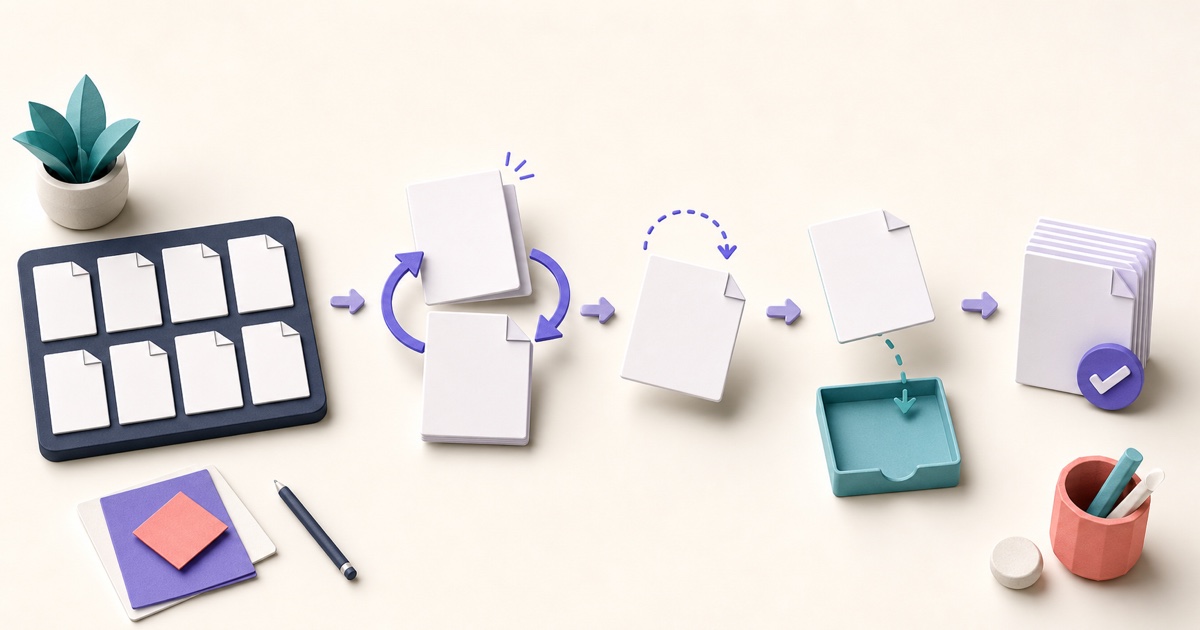
How to Reorder, Rotate, Remove, and Extract PDF Pages
Page-level cleanup is easier when you review the whole document first and make changes in a deliberate order.