iLovePDF Online PDF Toolkit Review: What to Check
A useful toolkit review separates the advertised feature list from the checks that matter for your particular document, privacy requirements, and output.

This review was checked on July 28, 2026. Online products change, so confirm current limits and policies on the provider’s own pages before processing an important document.
What the toolkit currently covers
The official iLovePDF tool directory lists PDF organization, optimization, conversion, editing, security, forms, OCR, and newer document-intelligence features. Its range includes familiar operations such as merge, split, compress, rotate, crop, page numbering, watermarking, password protection, and conversion between PDF and several office or image formats.
A broad catalog is useful when one workflow crosses several formats. It also makes it important to check the exact tool page rather than assuming that every input, output, batch limit, or editing feature behaves in the same way.
Evaluate the workflow, not only the feature name
- Confirm the accepted input format and maximum file or page count.
- Check whether output is editable text, a page image, or a reconstructed document.
- Look for batch limits, account requirements, and controls that may differ between free and paid use.
- Reopen the result and inspect page order, fonts, images, links, forms, and signatures.
Read the file-handling information
iLovePDF’s security page describes cloud processing, encrypted communications, and automatic deletion of ordinary processed files within two hours; it also notes a different retention period for signed documents. Those are the provider’s statements, not an independent audit. Compare them with your organization’s requirements before choosing any online service for confidential, regulated, or client material.
Choose a tool based on the document
Use lossless or conservative settings when small text, diagrams, or signatures matter. Keep the original before compressing, flattening, converting, or unlocking. If a visible cover must permanently remove sensitive information, use a real redaction workflow rather than cropping or placing a shape over the page.
How smallpdf.app differs
The smallpdf.app tool directory intentionally offers a narrower set of focused workflows and states practical limits beside each tool. That does not make one service universally better. Choose the service whose working capability, file-handling model, output, and limits match the specific task, then verify the downloaded result yourself.
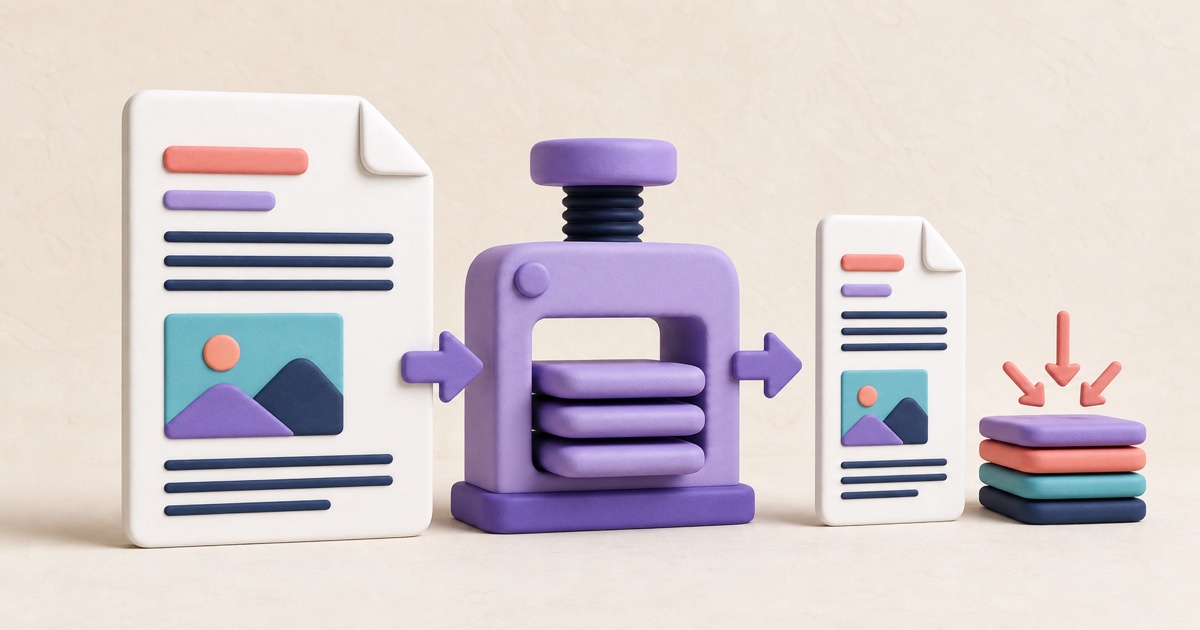
How to Compress a PDF Without Sacrificing Readability
Useful PDF compression is not just about the smallest number. Choose a method that fits the document, then check readability and important features in the result.
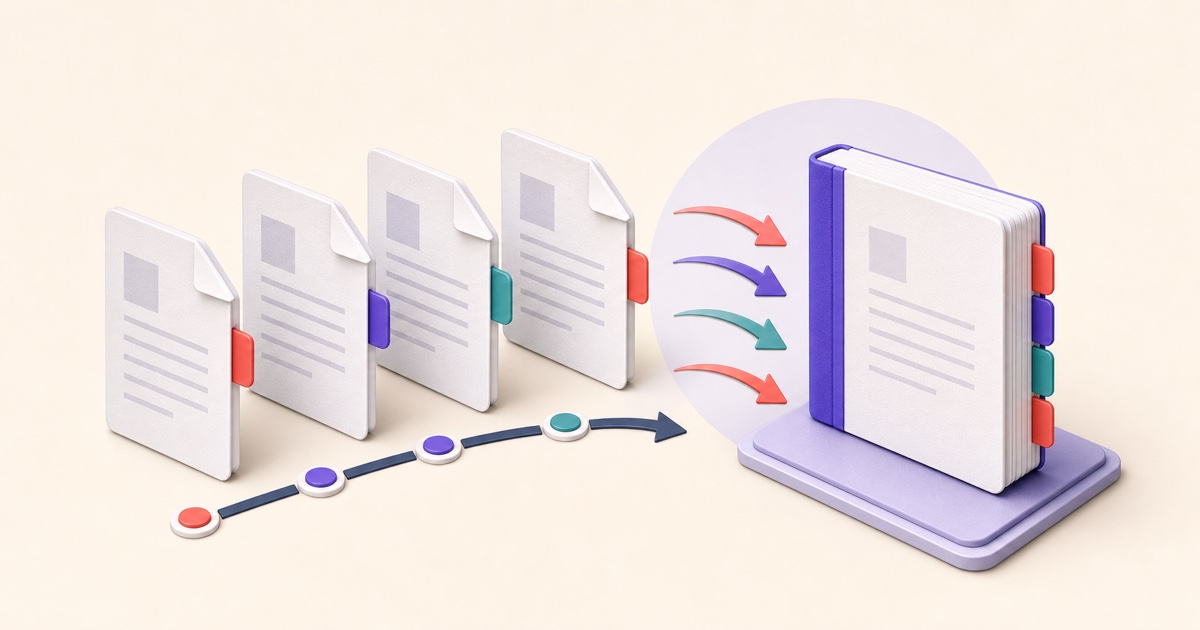
How to Merge PDF Files in the Right Order
A reliable merge starts before you click the final button. Use this workflow to prepare, order, combine, and check a multi-file PDF.

How to Password-Protect a PDF Before Sharing It
Password protection is most useful when the password, delivery method, and final-file checks are treated as one complete workflow.