How to Take a Screenshot on Windows and Prepare the Image
The best screenshot captures only the needed area, avoids private information, and is checked at its intended viewing size before sharing.

A screenshot is useful for recording an error, preserving a visual reference, or sharing a small part of an application. Before capturing, close or hide notifications, account names, private tabs, passwords, access tokens, and any unrelated document content.
Capture a selected area with Snipping Tool
Microsoft documents Windows key + Shift + S as the shortcut for the Snipping Tool overlay. Choose a rectangular area, a window, the full screen, or a free-form region. The capture is copied to the clipboard and can be opened from the notification for cropping, annotation, saving, or sharing. See Microsoft’s current screenshot instructions for the available modes.
Use Print Screen deliberately
Print Screen captures the full screen on common Windows configurations, while Alt + Print Screen captures the active window. Keyboard behavior can vary by device and settings. A full-screen capture is quick, but it is also the most likely to include private or distracting information.
Crop and annotate only what helps
Leave enough surrounding context to identify the relevant window or control. Use arrows or highlights sparingly, and never cover sensitive content with the assumption that it has been securely removed. Crop it out of the saved image or recapture the screen after hiding it.
Choose a suitable image format
PNG is a strong default for text, dialogs, diagrams, and interface screenshots because it keeps sharp edges. JPEG can be smaller for photographic material but may soften small text. Zoom in before sharing to ensure identifiers and error details remain readable.
Combine several screenshots into a PDF
When screenshots document a sequence, name them in order and add them to Images to PDF. Arrange the cards, remove duplicates, choose page settings, and check the finished PDF. For camera captures of paper pages, PDF Scanner provides crop and filter controls designed for that workflow.
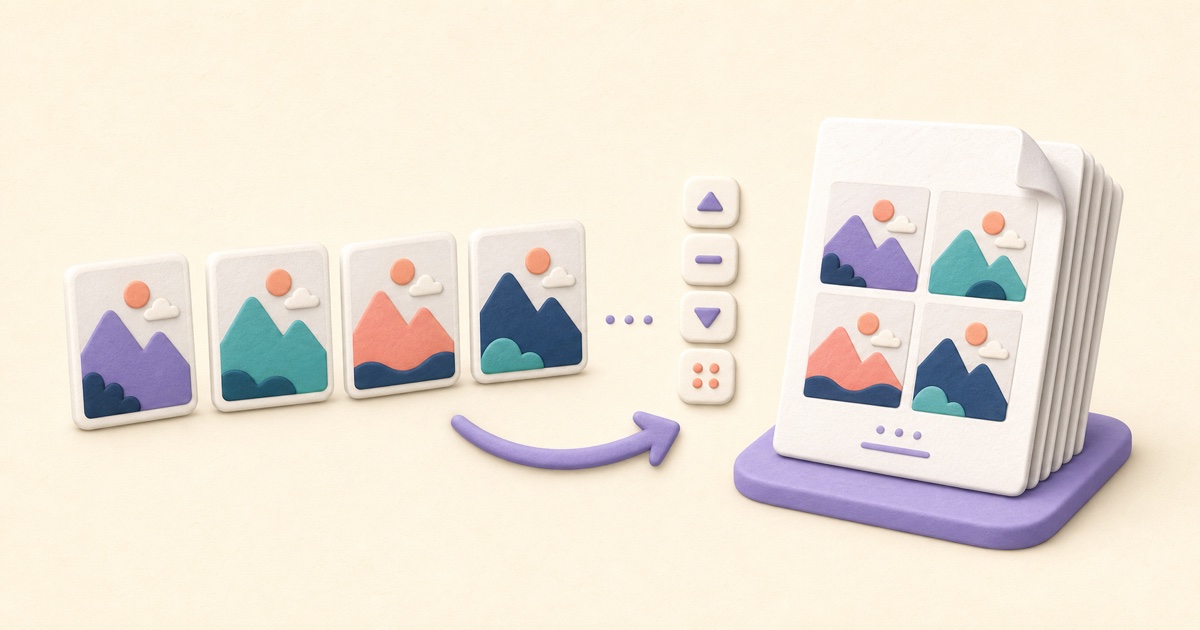
How to Combine JPG, PNG, and BMP Images into One PDF
A clean image-based PDF starts with page order, orientation, margins, and a final check that every image remains readable.
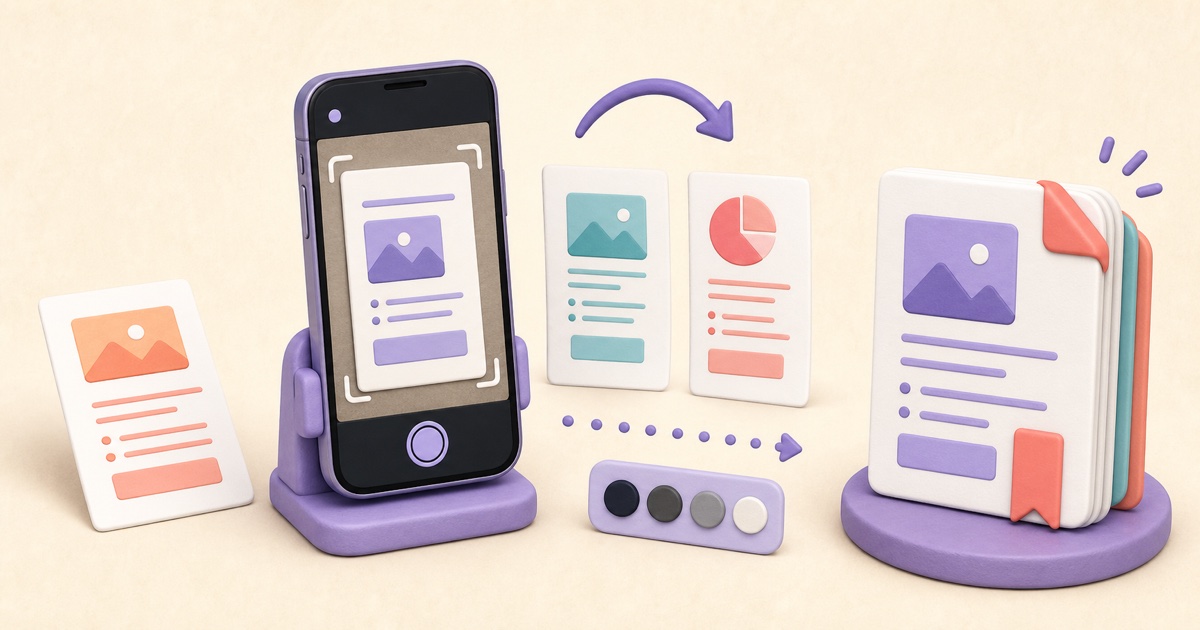
How to Scan Documents to PDF with Clear, Consistent Pages
A useful scanned PDF begins with complete, evenly lit photos. Cropping and filters can improve presentation, but they cannot restore missing detail or make text searchable.
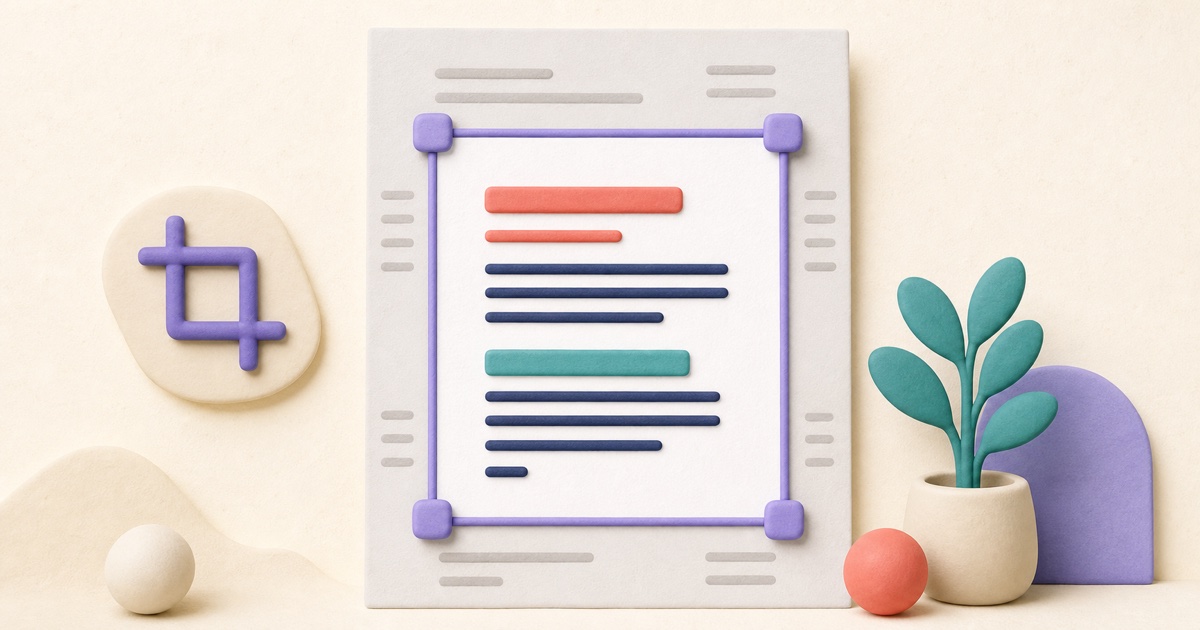
How to Crop PDF Pages and Remove Unwanted Margins
Cropping can make uneven scans and oversized margins easier to read, but the best result depends on consistent framing and a careful page-by-page review.