How to Resize PDF Pages to A4, Letter, Legal, or A3
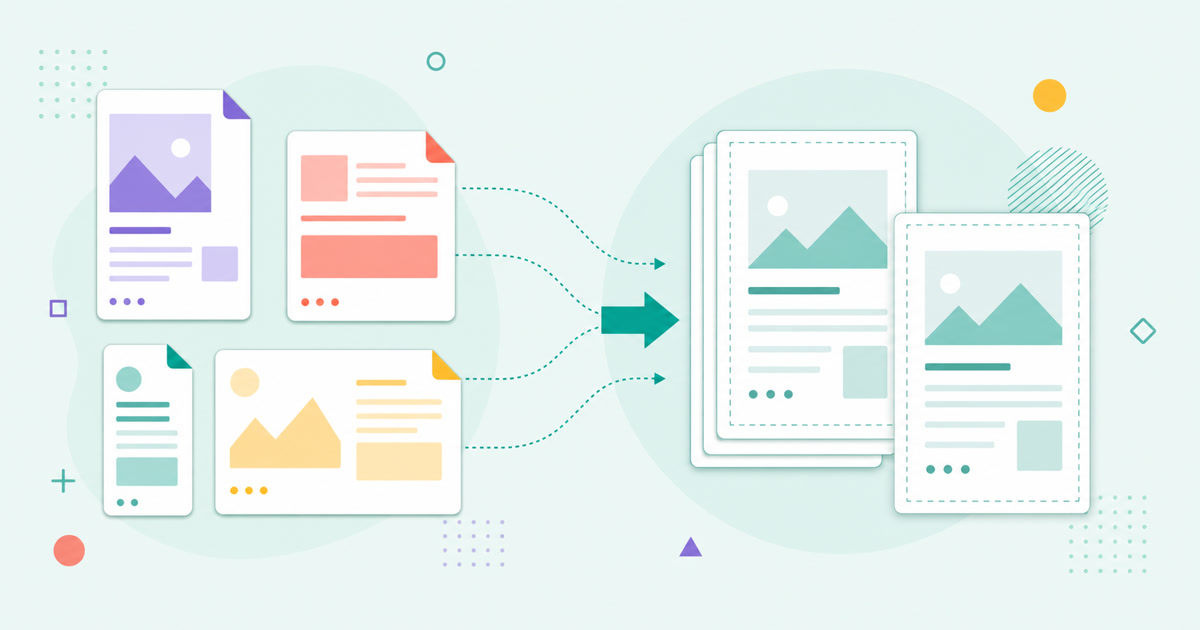
Resizing PDF pages changes their paper dimensions while fitting the original page proportionally. Choose the destination size for the final print or submission workflow.
Choose the destination paper first
Use Resize PDF when pages need a consistent A4, Letter, Legal, or A3 canvas. Choose the standard required by the printer, submission system, binder, or documents that the file will later be combined with.
Fit pages without clipping content
The tool scales each source page proportionally and centers it within the selected margins. This prevents cropping, although pages with a different aspect ratio may gain blank space along two edges. Landscape orientation is useful for wide source pages; portrait suits most reports and forms.
Understand what the resized copy contains
Each source page is placed into a newly sized PDF page. Interactive form fields, links, and annotations are not carried into that copy. Complete important interactive work first and keep the original document if those features may be needed later.
Inspect every page after conversion
Open the downloaded PDF and check small text, margins, page orientation, and any pages that began with unusual dimensions. If the document also needs reordered or rotated pages, use Organize PDF before preparing the final copy.
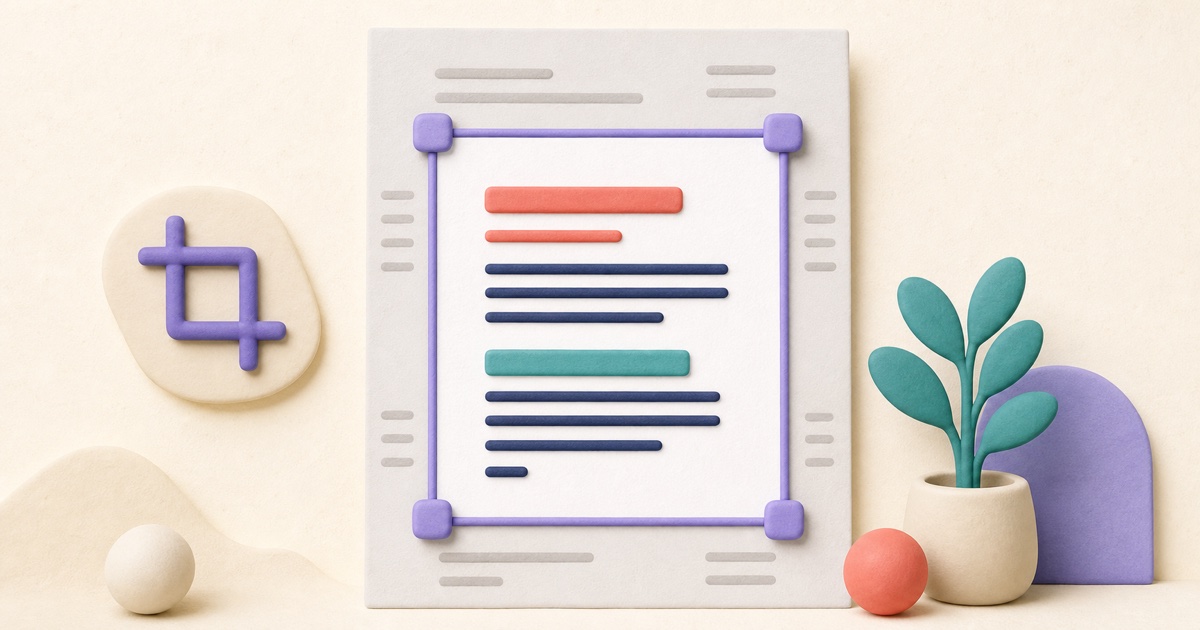
How to Crop PDF Pages and Remove Unwanted Margins
Cropping can make uneven scans and oversized margins easier to read, but the best result depends on consistent framing and a careful page-by-page review.
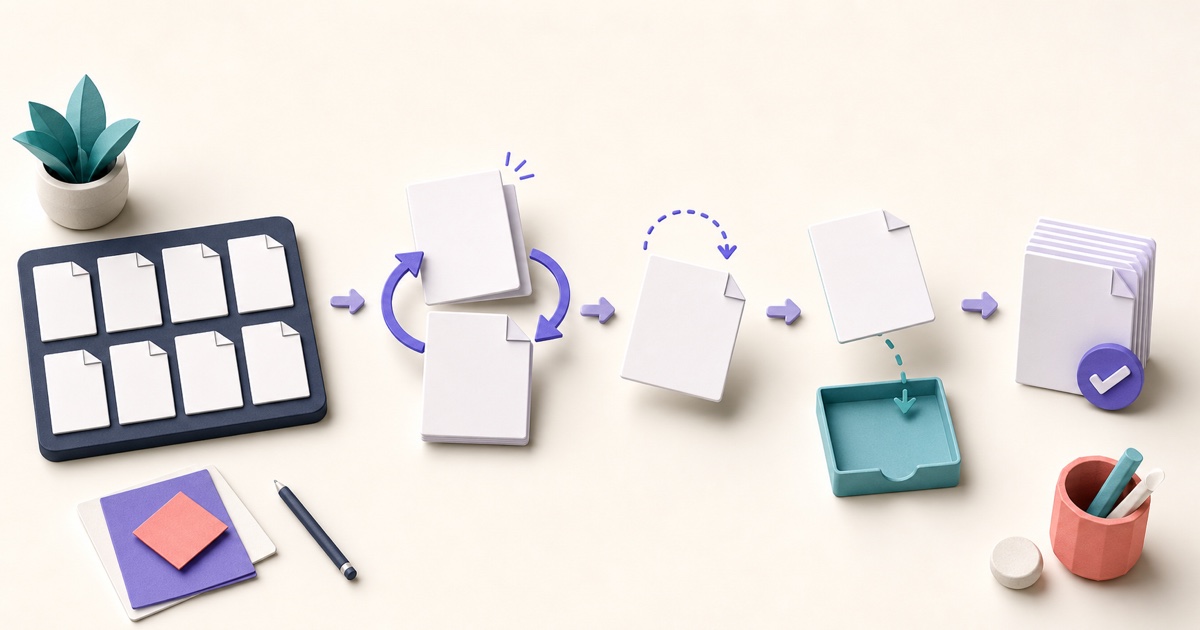
How to Reorder, Rotate, Remove, and Extract PDF Pages
Page-level cleanup is easier when you review the whole document first and make changes in a deliberate order.
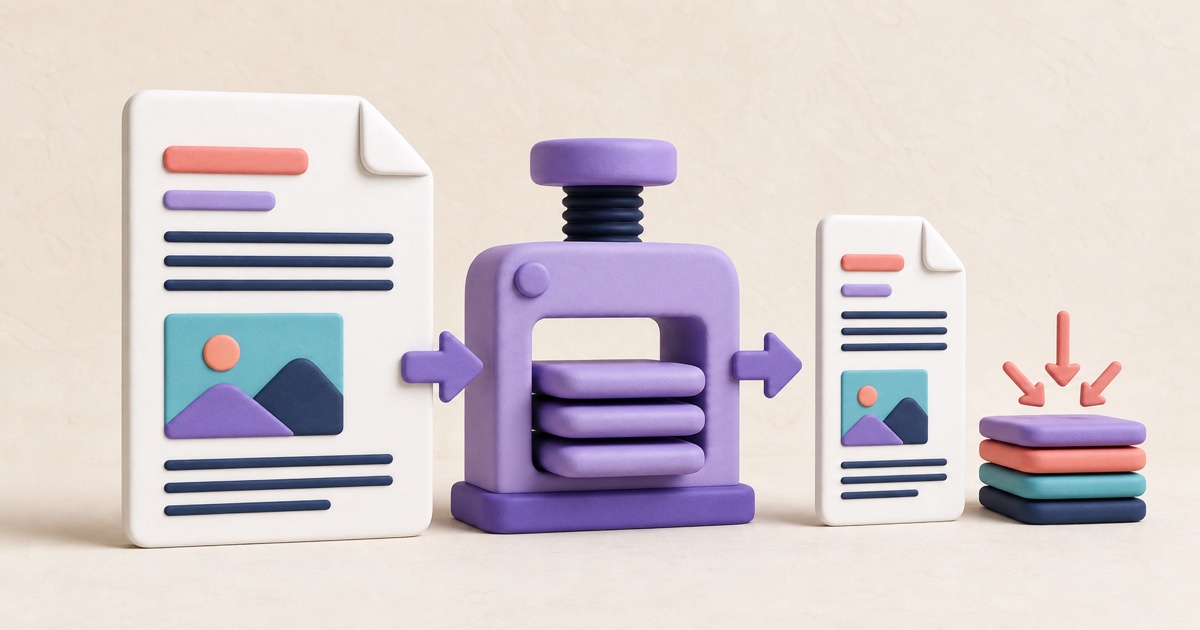
How to Compress a PDF Without Sacrificing Readability
Useful PDF compression is not just about the smallest number. Choose a method that fits the document, then check readability and important features in the result.