How to Make a Scanned PDF Searchable with OCR
A searchable scanned PDF keeps the original page image while adding recognized text underneath. Clear source pages, the correct language, and a final accuracy check matter most.
What is OCR?
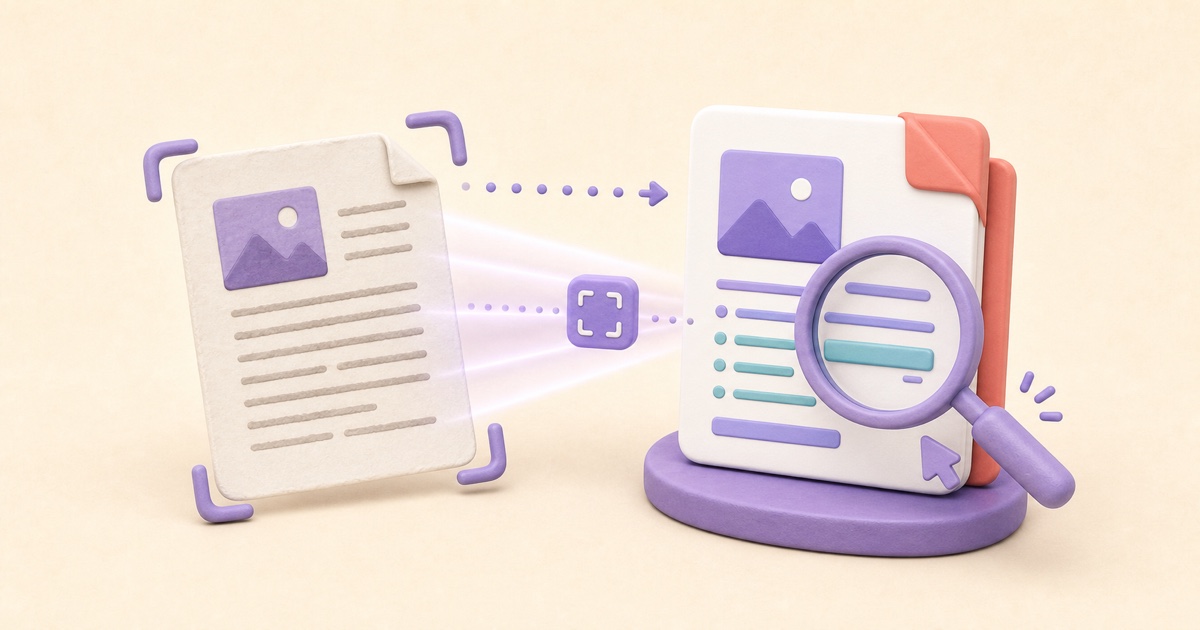
OCR stands for optical character recognition. It is a process that examines an image containing printed words, identifies shapes that look like letters and numbers, and converts those shapes into computer-readable text.
For example, a scanner may capture the word “Invoice” only as a group of dark pixels. A person can read those pixels, but a computer initially sees them as part of an image. OCR interprets the shapes as the letters I, n, v, o, i, c, and e. The PDF can then support searching, selecting, and copying that recognized word.
OCR does not translate the document or replace its original page image. It also does not guarantee a perfect transcription. It creates a text interpretation of the visible scan, and that interpretation should be checked when accuracy matters.
Understand what OCR adds to a scanned PDF
A scanned PDF often contains page images rather than real characters. The page looks readable, but searching for a name returns nothing and dragging over a sentence does not select words. OCR analyzes those page images and adds computer-readable text.
The smallpdf.app OCR PDF tool keeps each original page visible and places recognized text in an invisible layer. That makes printed words searchable and selectable without rebuilding the page design.
If you need editable plain text instead of a visually unchanged searchable PDF, use PDF to Text. It reads existing PDF characters and automatically uses OCR only on pages that need recognition.
Begin with the clearest source available
OCR accuracy depends heavily on the scan. Straight pages, sharp focus, strong contrast, even lighting, and sufficiently large characters provide the best starting point. Blur, glare, shadows, folds, bleed-through, aggressive image compression, and very small print can turn one character into another.
If you are starting with paper pages, use the PDF Scanner to capture complete, evenly lit pages. Crop away the surrounding desk without cutting into the document. If an existing PDF has excessive margins, Crop PDF can improve framing, although cropping alone does not improve the underlying image detail.
Choose the language used in the document
The recognition language helps OCR decide which characters and word patterns are likely. Choose the main printed language of the document. When a non-English document also contains English headings, addresses, or product names, enable English as the second language.
Adding an unnecessary language can increase processing work and may make ambiguous characters harder to resolve. Select only the languages that are actually present. OCR does not translate the document; the output text remains in the source language.
Handle PDFs that mix scans and searchable pages
Some PDFs combine scanned attachments with digitally generated pages. Running OCR over text that is already selectable can create duplicate search results or confusing selection behavior. Keep “Skip pages that already contain searchable text” enabled for a mixed document.
The tool checks each page for a meaningful amount of existing text. Pages that already qualify remain unchanged, while image-based pages are recognized. A short page number or isolated label is not treated as enough searchable content on its own.
Create the searchable copy
- Choose one PDF containing up to 20 pages and 25 MB.
- Select the primary printed language and, if needed, include English.
- Leave existing searchable pages set to be skipped unless you have a specific reason to process them.
- Start OCR and let every page finish.
- Download the new file whose name ends in -searchable.pdf.
The original file is not overwritten. OCR language data loads only when recognition begins, and pages are processed one at a time so memory use remains bounded.
Check the exact downloaded PDF
Open the result in the PDF Reader or another trusted viewer. Search for distinctive words on several pages, select full sentences, and paste them into a plain-text field. Compare the pasted text with the visible scan.
Pay special attention to names, dates, totals, account numbers, reference codes, addresses, legal clauses, and characters with accents. If a value matters for payment, identity, filing, accessibility, or a legal decision, verify it against the page image rather than relying on OCR alone.
Know the practical limits
This workflow is intended for clear printed text. Handwriting, decorative type, mathematical notation, vertical text, complex forms, stamps, and damaged documents may be missed or recognized incorrectly. The page image remains the visual source of truth.
Adding a text layer does not translate the PDF, repair a poor scan, create an accessible document structure, certify a transcript, or securely remove content. If words need correction or visible annotation after recognition, use Edit PDF, remembering that visual covers and whiteout are not secure redaction.
How to Extract Text from a PDF or Scanned Document
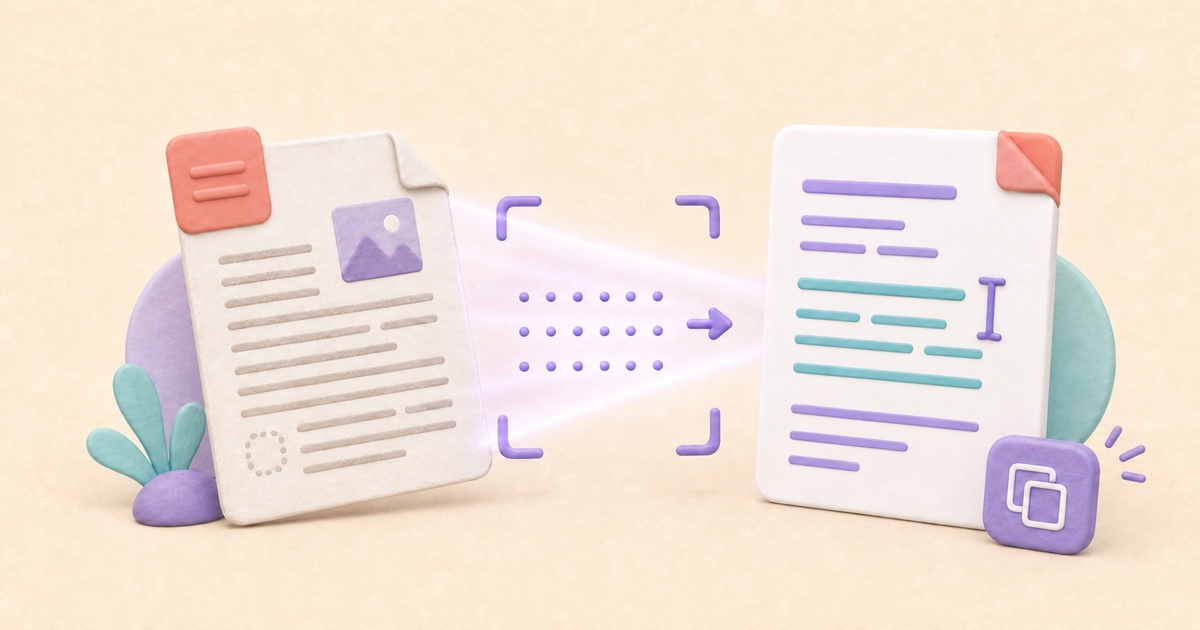
PDF-to-text conversion should read existing characters directly, recognize printed scans only when needed, and leave you with editable text that can be checked before use.

How to Scan Documents to PDF with Clear, Consistent Pages
A useful scanned PDF begins with complete, evenly lit photos. Cropping and filters can improve presentation, but they cannot restore missing detail or make text searchable.

How to Edit PDF Text and Add Images or Markup
PDF editing is safer when you check whether text replacement is direct, OCR-based, or visual, review every page, and keep an untouched source.

How to Crop PDF Pages and Remove Unwanted Margins
Cropping can make uneven scans and oversized margins easier to read, but the best result depends on consistent framing and a careful page-by-page review.