How to Extract Text from a PDF or Scanned Document
PDF-to-text conversion should read existing characters directly, recognize printed scans only when needed, and leave you with editable text that can be checked before use.
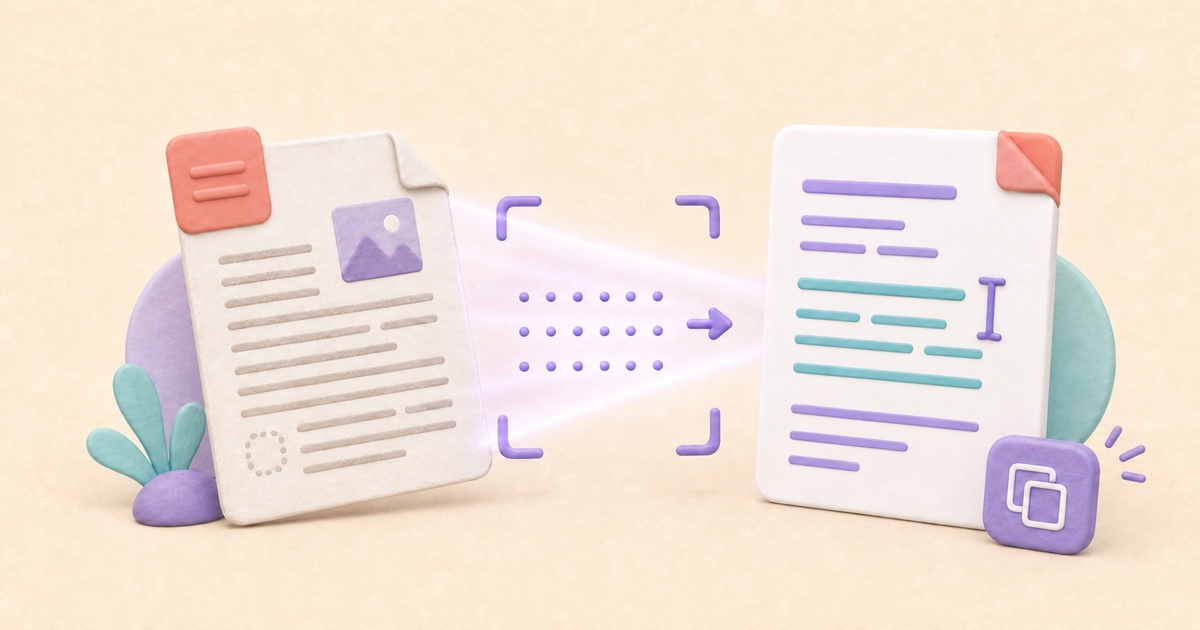
PDF text can come from characters or page images
A PDF that looks readable can store its words in two very different ways. A digitally created PDF usually contains real characters that a reader can select and search. A scanned PDF may contain only a photograph of each page. In that case, the visible letters are pixels rather than usable text.
The PDF to Text tool checks each page separately. It reads existing selectable text directly and can recognize printed words on pages that do not contain enough real characters. This page-by-page approach is useful for mixed documents containing both generated pages and scanned attachments.
What is OCR?
OCR stands for optical character recognition. It analyzes an image containing printed letters and numbers, identifies the character shapes, and produces computer-readable text. For example, a scanned invoice may show “Total 42.00” clearly to a person while the PDF itself contains no searchable words. OCR interprets those pixels so the result can be copied, edited, or saved as text.
OCR is not translation, handwriting recognition is not guaranteed, and recognition is not a perfect transcription. Blur, shadows, skew, very small type, unusual fonts, and complex layouts can all affect the result. Important values should always be compared with the visible page.
Choose direct extraction before OCR
Existing PDF characters normally provide better spelling, punctuation, and speed than OCR. They should be extracted directly whenever a page contains a meaningful amount of selectable text. Automatic OCR is intended for pages where those characters are missing, not as a replacement for reliable text already embedded in the document.
A page containing only a number or short label may still need recognition. If OCR finds no useful printed text, keeping that short existing text is safer than discarding it.
Extract text step by step
- Choose one PDF containing up to 100 pages and 50 MB.
- Leave automatic OCR enabled when the file may include printed scans.
- Select the main printed language. For a non-English document that also contains English, enable English as the second language.
- Extract the document and wait while every page is checked.
- Review and edit the text, then copy it or prepare the UTF-8 TXT file.
Automatic OCR is limited to 20 pages that need recognition. A longer PDF can still contain up to 100 pages when most pages already have selectable text. If more than 20 pages are scanned, split the source into smaller parts or disable OCR to retrieve only the existing text.
Use page labels to keep context
Plain text cannot reproduce the physical page boundary of a PDF. The extracted result therefore adds a marker such as --- Page 3 --- before every page. These visible labels help identify where one page ends and the next begins, including blank pages.
Keep the labels when page references matter. You can edit or remove them before preparing TXT when you only need continuous prose.
Review reading order and formatting
PDF files position characters on a page rather than storing every paragraph as a clean sequence. Extraction groups nearby characters into approximate lines. OCR also reports recognized lines in its estimated reading order. A straightforward single-column page usually converts well, while tables, sidebars, footnotes, forms, and multi-column layouts may appear in an unexpected sequence.
Plain TXT does not preserve fonts, images, links, column widths, tables, or exact spacing. If the original page appearance matters, use the PDF Reader. If you want searchable text while keeping the scanned pages visible, use OCR PDF instead.
Edit, copy, or download the result
The extracted text remains editable before download. Correct recognition mistakes, repair a heading or line break, or remove content you do not need. Copy is convenient for moving a short passage into another application. Preparing TXT creates a UTF-8 plain-text file, which supports the available languages without tying the content to a page design.
If you later need a clean PDF made from the corrected text, open TXT to PDF. That creates a newly formatted document; it does not recreate the original PDF layout.
Know what PDF to Text does not do
This workflow does not reconstruct tables, guarantee exact columns, translate languages, certify accuracy, or reliably read handwriting. It also does not produce DOCX. Its purpose is to create reviewable plain text from ordinary PDF characters and clear printed scans.
Your PDF is handled by the tool in your browser. OCR language data loads only if pages need recognition, and pages are processed one at a time. Keep the source file until you have checked the final text.
How to Make a Scanned PDF Searchable with OCR
A searchable scanned PDF keeps the original page image while adding recognized text underneath. Clear source pages, the correct language, and a final accuracy check matter most.
How to Edit PDF Text and Add Images or Markup
PDF editing is safer when you check whether text replacement is direct, OCR-based, or visual, review every page, and keep an untouched source.
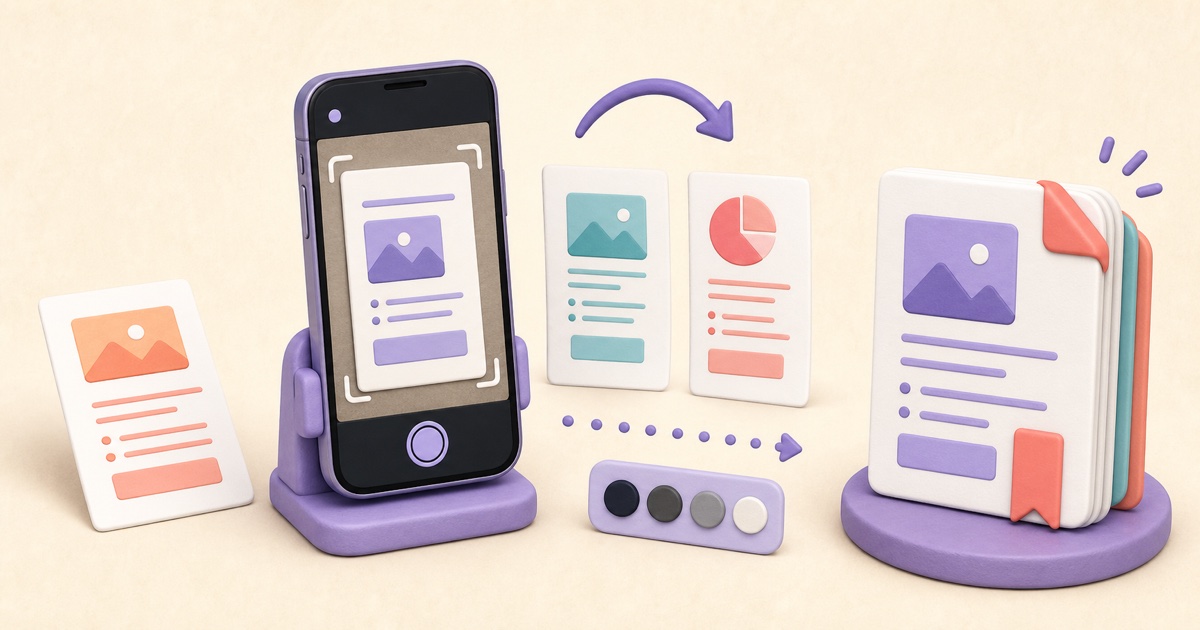
How to Scan Documents to PDF with Clear, Consistent Pages
A useful scanned PDF begins with complete, evenly lit photos. Cropping and filters can improve presentation, but they cannot restore missing detail or make text searchable.