How to Format and Validate JSON Online
Reliable JSON formatting improves readability without silently changing data. Validate first, choose deliberate formatting options, and review the exact result before using it.

What JSON formatting and validation actually do
JSON often arrives in a form that is correct for software but difficult for a person to inspect. An API response may be minified onto one line, a configuration file may use inconsistent indentation, or a copied example may contain a small syntax error. Formatting makes the structure visible; validation determines whether the source follows JSON syntax.
A formatter should not invent missing data or guess what an invalid document meant. The JSON Formatter parses valid JSON before creating a result. If parsing fails, it identifies the approximate line and column so you can correct the source instead of receiving a misleading partial output.
Format, validate, minify, or compare?
These actions are related, but they answer different questions:
- Validate asks whether the source is syntactically valid JSON.
- Format adds indentation and line breaks to valid JSON so objects and arrays are easier to follow.
- Minify removes presentation whitespace while keeping the same JSON tokens and structure.
- Sort object keys changes property order to create a more predictable visual arrangement. It does not sort arrays.
- Convert changes the data model, such as turning object records into a CSV table.
- Compare reviews two versions and identifies additions, removals, or changed values.
Use formatting when you need to understand one document. Use JSON Compare when you need to determine how two documents differ.
How to format JSON step by step
- Choose the source. Paste JSON into the input area, drop a UTF-8
.jsonfile, or choose one from your device. - Select indentation. Two spaces are compact and common; four spaces create stronger visual separation; tabs let an editor control the displayed width.
- Decide whether to sort object keys. Leave the option off when source order helps reviewers. Enable it when a consistent key order makes repeated inspection easier.
- Format or minify. Formatting creates a multi-line result. Minifying removes unnecessary whitespace.
- Read any validation message. Correct invalid syntax in the input and run the action again.
- Review the result. Check important identifiers, numbers, strings, arrays, and nested objects before copying or downloading it.
Choose indentation deliberately
Indentation changes presentation, not nesting. The same object can be represented using two spaces, four spaces, tabs, or no optional whitespace at all.
Two spaces
Two-space indentation keeps deeply nested documents narrower. It is a practical default for API responses, examples, logs, and configuration files.
Four spaces
Four spaces make each level more obvious, especially in a short document. The tradeoff is horizontal space: deeply nested content moves farther to the right.
Tabs
Tabs allow compatible editors to display indentation at a preferred width. They can be useful within a team convention, but copied output may look different in tools with different tab settings.
Understand what key sorting changes
JSON objects contain named properties, while arrays contain ordered items. Sorting object keys can make repeated documents easier to scan because the same property tends to appear in the same place. The formatter applies sorting recursively to nested objects.
Array order is never changed. An array can represent priority, an execution sequence, ranked results, coordinates, or another order-sensitive list. Sorting array items without knowing their meaning could change the data.
Key sorting still changes the source representation. Leave it off when property order is meaningful to a human workflow, when you need to retain the producer’s exact layout, or when duplicate property names require special review.
Avoid silent number changes
Large identifiers are a common JSON formatting risk. Many programming environments store ordinary JSON numbers using binary floating-point values, which cannot represent every large integer exactly. Parsing and then serializing through such a number type can round an identifier even though the document looked valid.
The formatter preserves original number tokens, including large integers and exponent notation, rather than converting them through a JavaScript number. It also preserves duplicate properties instead of silently discarding all but one. These cases still deserve careful review because receiving applications may interpret them differently.
Fix common invalid JSON errors
Trailing commas
{
  "active": true,
}
The comma after the final property is invalid. Remove it unless another property follows.
Single-quoted strings
{'name': 'Ada'}JSON strings and property names require double quotes. Single quotes may be accepted by JavaScript source syntax, but they are not JSON.
Unquoted property names
{status: "ready"}Property names must be JSON strings, so status needs double quotes.
Comments
{
  // temporary setting
  "enabled": false
}
Standard JSON has no comment syntax. Move the explanation outside the document or store it as an ordinary property only when the receiving schema permits that property.
Mismatched brackets or braces
An object opens with { and closes with }; an array opens with [ and closes with ]. Indentation often makes a missing or incorrect closing character easier to locate.
Minify JSON for transport, not understanding
Minification removes spaces, indentation, and line breaks that are not part of string values. This can reduce a document’s character count, but compression at the HTTP or file level often has a larger effect for repeated JSON keys and values.
Keep a readable source when people maintain the document. Use a minified copy only where compact transport or storage is useful, and do not treat minification as encryption or secret removal.
Handle API responses and configuration safely
JSON may contain access tokens, session data, personal information, private URLs, or configuration secrets. Formatting makes content easier to see; it does not make that content safe to share. Before copying a result into a ticket, chat, or documentation page, review every value and remove information the recipient should not receive.
Validation also proves only that the syntax is JSON. It does not prove that required fields exist, that values use the expected types, or that the document satisfies an API schema. Use JSON Schema Validator when the document needs to follow a defined contract.
When to compare instead of format
If you suspect a configuration or API response changed, formatting one document is only preparation. Open JSON Compare and place the original and changed documents on opposite sides. Format-aware comparison can remove presentation noise and reveal structural differences, while exact-source comparison includes indentation and property order.
For incomplete drafts that are not valid JSON yet, use exact comparison or Text Compare. A structural JSON comparison cannot reliably interpret unfinished syntax.
Final JSON review checklist
- The source validates without trailing commas, comments, or invalid quote styles.
- The chosen indentation remains readable at the document’s nesting depth.
- Object-key sorting is enabled only when changing source order is acceptable.
- Array item order is unchanged.
- Large numbers, exponent notation, escaped strings, and duplicate properties have been reviewed.
- No credentials, tokens, or personal data will be exposed by copying or sharing the result.
- The downloaded file has been reopened when it will be used by another system.
Start with JSON Formatter to validate and clean up one document. Continue by learning how to view nested JSON as a tree, convert JSON records to CSV, or compare JSON files and find meaningful changes.

How to Convert JSON to CSV Without Losing Important Data
JSON-to-CSV conversion works best when the source describes consistent records. Review headers, nested values, blanks, delimiters, and identifiers before using the table.

How to Validate JSON with JSON Schema
Valid JSON syntax does not guarantee a valid payload. JSON Schema describes the required shape and constraints so mismatches can be reviewed consistently.

How to View and Navigate JSON as a Tree
A tree view turns nested JSON into navigable branches. Use keys, indexes, types, values, and complete paths to reach the part of the document that matters.
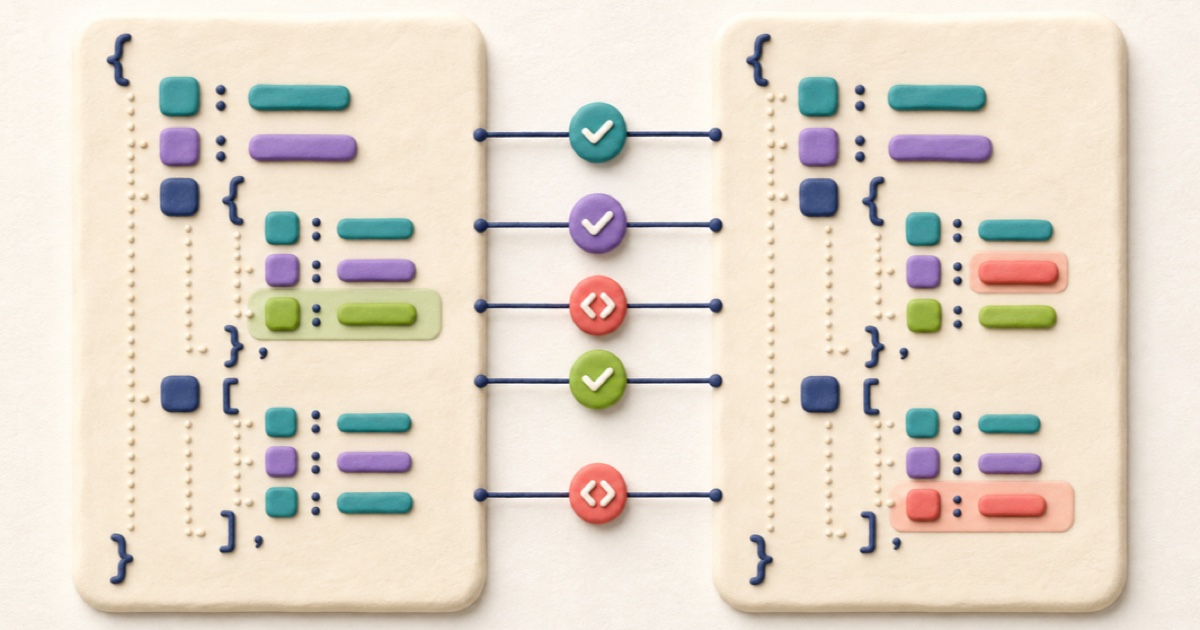
How to Compare JSON Files and Find Meaningful Changes
A useful JSON comparison separates structural changes from harmless formatting so you can focus on values, properties, and array order.