How to View and Navigate JSON as a Tree
A tree view turns nested JSON into navigable branches. Use keys, indexes, types, values, and complete paths to reach the part of the document that matters.

Why a tree view helps with nested JSON
Formatted JSON makes braces and indentation readable, but a large document can still require a great deal of scrolling. A tree view turns every object and array into an expandable branch so you can hide unrelated data and follow one path at a time.
The JSON Tree Viewer displays keys, array indexes, types, scalar values, child counts, and complete root-based paths. Search filters the tree while retaining the ancestor branches needed to reach each match.
Map JSON values to tree nodes
Every JSON value becomes a node:
- an object becomes a branch whose children are named properties;
- an array becomes a branch whose children are numbered indexes;
- a string, number, boolean, or null becomes a leaf with a displayed type and value.
The root is represented by $. Expanding an object reveals its properties; expanding an array reveals items in their original order.
Understand JSON paths
A path identifies one location from the root. Simple object keys use dot notation:
$.customer.address.cityArray indexes use brackets:
$.customers[2].nameA key containing spaces, punctuation, or another character that is awkward in dot notation uses a quoted bracket form:
$["customer name"]Select a displayed path in the viewer to copy it. This path style is useful for communication and navigation, but a particular programming language or query library may use different escaping rules. Confirm the syntax expected by the destination.
Search keys, values, types, and paths
Search checks several visible aspects of each node: its key, complete path, type, and scalar value. A search for active can match a property name or part of a path. A search for boolean can isolate typed leaves, while a known identifier can locate its value.
The filtered result keeps every ancestor of a matching node. Without those ancestors, the match would lose its location in the document. Clear the search to restore the complete tree.
Use expand and collapse with intention
The first levels open automatically so the overall shape is visible. Expand a branch when investigating its contents and collapse it when it no longer contributes to the review.
Expand all is practical for small documents. On a large tree, it can create a dense view that defeats the purpose of navigation. Search or open one branch at a time when the document contains many repeated records.
Preserve important JSON tokens during inspection
A viewer that converts every number into an ordinary floating-point value can round a large integer before displaying it. This viewer uses the same lossless parsing foundation as JSON Formatter, preserving original number tokens such as 9007199254740993 and exponent notation.
It also retains duplicate object properties as separate tree nodes rather than silently showing only the last one. Duplicate property names are valid tokens in some parsed JSON sources but are interpreted inconsistently by receiving software. Treat them as a warning that the data contract needs correction.
Build and navigate a JSON tree step by step
- Paste or load valid JSON. Correct syntax errors with JSON Formatter first when necessary.
- Build the tree. Review the reported node count and maximum depth.
- Inspect the first branches. Identify the main objects, arrays, and repeated record collections.
- Search for a known detail. Use a key, identifier, type, scalar value, or path fragment.
- Follow the ancestors. Confirm which object and array item contain the match.
- Copy the path. Use it in a bug report, mapping document, test case, or compatible query system.
- Clear the search and continue. Review neighboring values when context matters.
Know the safety limits
Rendering every node creates interface elements and can become expensive for very large or deeply nested documents. The viewer applies explicit limits to source size, node count, and nesting depth so an accidental or hostile input cannot grow the page without bound.
For data beyond those limits, use streaming command-line or database tools that can inspect selected paths without constructing the entire interactive tree.
Tree view, formatter, schema validator, or comparison?
- Use JSON Tree Viewer to navigate one valid document and copy paths.
- Use JSON Formatter to change indentation, sort object keys, minify, or diagnose syntax.
- Use JSON Schema Validator to test whether values and structures follow a contract.
- Use JSON Compare to find changes between two documents.
These tools answer different questions. A tree can show where a value exists but does not prove that it is allowed. A schema can report a failing path but may be easier to investigate after opening that path in a tree.
Inspect API responses effectively
Large API responses often repeat objects inside arrays. Start by opening one representative record, then search for a required field or unusual value. Copy paths when documenting mappings between the response and another system.
Before sharing a screenshot, copied path, or value, review the source for access tokens, personal data, private URLs, and internal identifiers. A clearer view makes sensitive information easier to notice, not safer to disclose.
Final JSON tree checklist
- The source parses as valid JSON.
- The root type and top-level branches match expectations.
- Array order and indexes are interpreted correctly.
- Search results are reviewed with their ancestor context.
- Copied paths use syntax supported by the destination.
- Large number tokens and duplicate properties have been reviewed.
- Schema validation or comparison is used when navigation alone is insufficient.
Start with JSON Tree Viewer. To test whether the values you find satisfy a contract, continue with the guide to validate JSON with JSON Schema.

How to Format and Validate JSON Online
Reliable JSON formatting improves readability without silently changing data. Validate first, choose deliberate formatting options, and review the exact result before using it.

How to Validate JSON with JSON Schema
Valid JSON syntax does not guarantee a valid payload. JSON Schema describes the required shape and constraints so mismatches can be reviewed consistently.
How to Compare JSON Files and Find Meaningful Changes
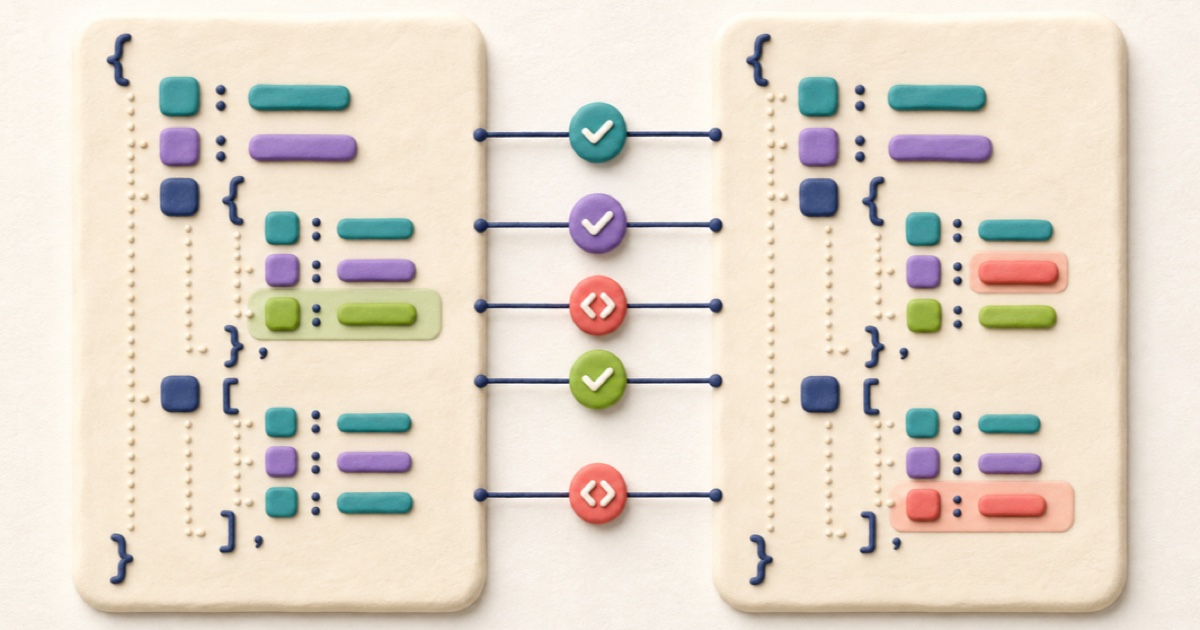
A useful JSON comparison separates structural changes from harmless formatting so you can focus on values, properties, and array order.