How to Convert WebP to GIF Without Losing Animation
A reliable WebP-to-GIF conversion preserves animation structure and timing while accounting for GIF’s smaller color palette and one-bit transparency.
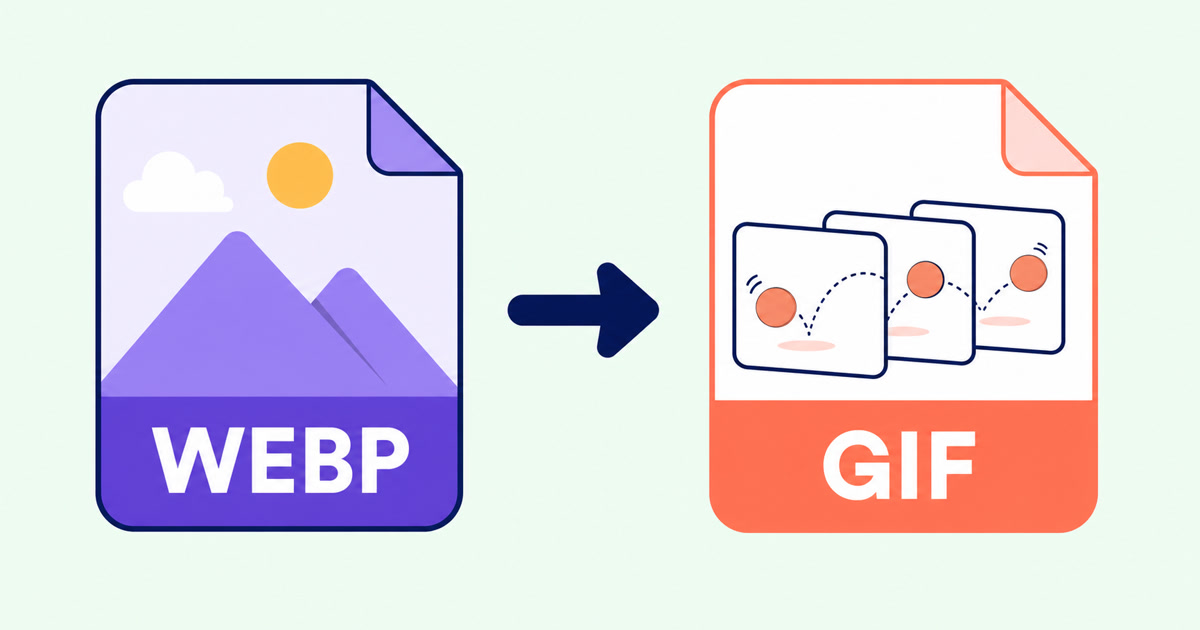
When GIF is more useful than WebP
WebP can store compact still images and animations, often with more colors and smoother transparency than GIF. GIF remains useful when a publishing system, chat client, presentation, or older workflow does not accept animated WebP. The WebP to GIF Converter reads the WebP container, reconstructs its frames, and creates a separate GIF download.
Conversion changes the file format rather than improving the source. Keep the original WebP when its smaller size, richer colors, or partial transparency matters. Use the GIF copy only where compatibility makes it necessary.
Check whether the WebP is static or animated
A filename alone does not reveal whether a WebP contains one image or an animation. After selecting a file, check the reported dimensions and frame count. A static WebP becomes a one-frame GIF. An animated source keeps multiple frames, their positions on the canvas, the delay before the next frame, and the loop count.
The converter also interprets frame blending and disposal instructions. Those rules determine whether a frame is drawn over the previous canvas, replaces its rectangle, or clears an area before the following frame. Ignoring them can produce trails, missing areas, or a GIF that looks correct only on its first loop.
Choose a practical color palette
GIF allows at most 256 colors in a frame. A WebP photograph, gradient, or soft illustration can contain far more. Start with 256 colors when visual detail matters. A 128- or 64-color palette can be useful for simple icons, diagrams, flat artwork, or an animation that must be smaller, but it can introduce banding and color shifts.
Palette size is not the only factor affecting output size. Pixel dimensions, frame count, motion between frames, and image complexity can matter more. If the GIF is unexpectedly large, reducing the source dimensions or shortening the animation usually has a stronger effect than removing a few palette colors.
Understand the transparency difference
WebP supports partial alpha values, so an edge can be 20%, 50%, or 80% transparent. GIF transparency is binary: a palette entry is either visible or transparent. Soft shadows and antialiased edges may therefore look harder or show a fringe when placed over a different background.
Preview the downloaded GIF against the background where it will actually appear. If transparent edges look poor, prepare the WebP against the intended solid background before converting. That gives the color reduction a known backdrop and avoids relying on transparency that GIF cannot represent precisely.
Verify timing and looping
Watch the finished GIF through at least two complete loops. Check the first transition, the last-to-first transition, and any frame that briefly flashes or clears part of the image. Very short WebP delays are rounded to timing values that GIF viewers can handle consistently, so an extremely fast source may play slightly differently.
Some applications also impose their own minimum delay or ignore a finite loop count. Test the actual downloaded file in the destination application rather than relying only on one browser preview. Keep the original animation available in case the destination later adds WebP support.
Use the converted file safely
The converter validates the RIFF and WebP chunk structure before processing and applies explicit limits to file size, dimensions, frame count, and total decoded pixels. Those limits keep unusually large or malformed animations from consuming unbounded browser memory.
After conversion, confirm the output dimensions, animation length, important colors, transparency, and loop behavior. If the content does not need to move, a still WebP, JPG, or PNG is usually more efficient than GIF. For several still images that belong in a document, use Images to PDF instead; for a photographic still that needs a smaller file, consider Compress JPEG.
How to Compress a JPEG Without Unnecessary Quality Loss
Effective JPEG compression balances visible quality and file size. Start moderately, compare the actual reduction, and inspect text and sharp edges at normal size.
HEIC to JPG or PNG: Which Format Should You Choose?
JPG usually suits photos and broad compatibility; PNG suits lossless output. Neither conversion makes the original HEIC better.
How to Combine JPG, PNG, and BMP Images into One PDF
A clean image-based PDF starts with page order, orientation, margins, and a final check that every image remains readable.