How to Compress a JPEG Without Unnecessary Quality Loss
Effective JPEG compression balances visible quality and file size. Start moderately, compare the actual reduction, and inspect text and sharp edges at normal size.
Compression is a quality decision
JPEG already uses lossy compression, so recompressing it trades some image detail for a smaller file. The Compress JPEG tool keeps the original pixel dimensions, applies the quality you choose, and offers a download only when the result is actually smaller.
Start with a moderate setting
Use a moderate quality first, then inspect the parts viewers care about most. Faces and photographs often tolerate compression well. Screenshots, tiny type, logos, and thin lines may reveal artifacts sooner and may be better stored as PNG.
Compare the actual reduction
An image that was already optimized may become only slightly smaller—or even larger—when re-encoded at a high setting. Compare the reported source and output sizes instead of assuming every pass helps. Lower the quality gradually when the reduction is insufficient.
Inspect the final download
Open the exact exported file at its intended display size and at 100% zoom. Check gradients, skin tones, text, and edge detail. For a source BMP, convert first with BMP to JPG; for several document images, arrange the approved copies with Images to PDF.
HEIC to JPG or PNG: Which Format Should You Choose?
JPG usually suits photos and broad compatibility; PNG suits lossless output. Neither conversion makes the original HEIC better.
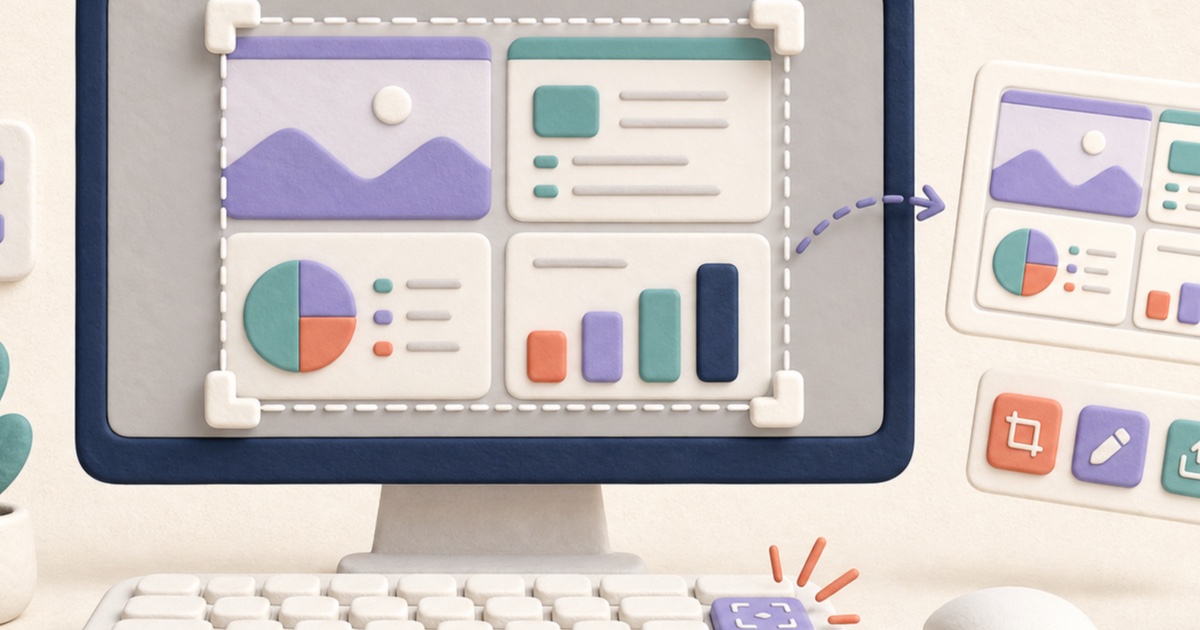
How to Take a Screenshot on Windows and Prepare the Image
The best screenshot captures only the needed area, avoids private information, and is checked at its intended viewing size before sharing.
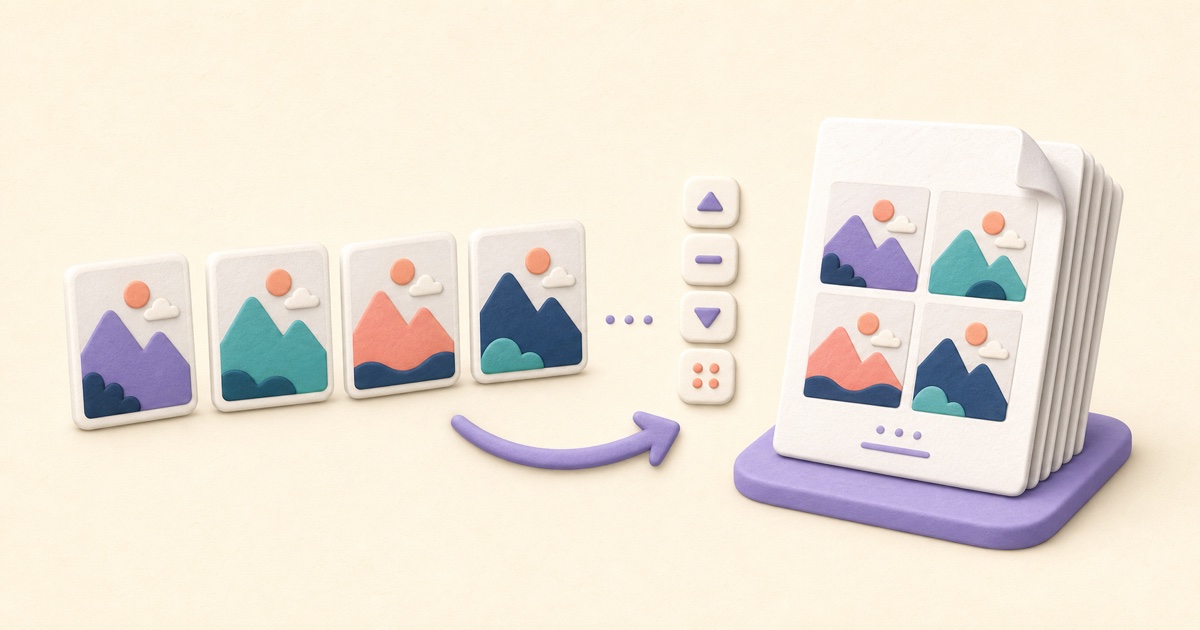
How to Combine JPG, PNG, and BMP Images into One PDF
A clean image-based PDF starts with page order, orientation, margins, and a final check that every image remains readable.