How to Convert PDF Pages to JPG Without Losing Readability
A useful JPG export depends on the destination, the source page, and the quality setting—not simply choosing the largest file.
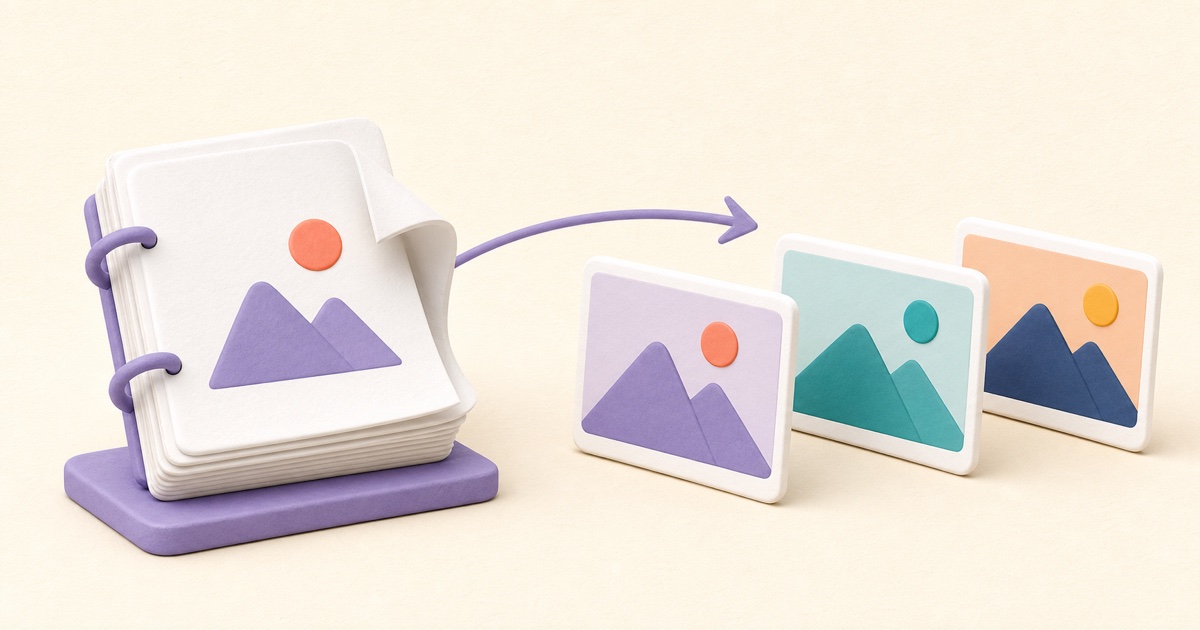
Know what changes during conversion
A PDF page can contain text, vector artwork, photographs, links, annotations, and interactive features. Converting it to JPG renders the visible page into a flat pixel image. That image can be easy to insert into a presentation, publish as a preview, or send to a system that does not accept PDFs, but it is no longer the same kind of document.
The smallpdf.app PDF to JPG tool converts every page in order. A one-page PDF downloads as one JPG. A document with several pages produces one numbered JPG per page and packages the images together in a ZIP file.
Choose quality for the destination
The right quality setting depends on how the image will be used:
- Screen creates smaller images for previews, quick sharing, and layouts where the page will not be enlarged.
- Standard is the recommended starting point for ordinary reading and reuse.
- High renders more pixels and uses stronger JPG quality for small text, diagrams, or closer inspection.
Higher quality can improve readability, but it also creates larger files. It cannot recover detail that is already blurred or missing in the PDF. Start with the intended destination rather than automatically selecting the largest output.
Check text and thin lines closely
JPG compression is designed for continuous-tone images such as photographs. Very small type, fine rules, charts, and high-contrast edges can show softness or compression artifacts. After conversion, view a representative page at the size your audience will use and zoom in on the smallest important content.
If the result is not clear enough, try the high setting. If the page remains difficult to read, keep it as a PDF or return to a better source document. A larger JPG cannot repair a low-resolution scan embedded in the original.
Keep the original page order
Multi-page results use numbered filenames so the images remain sortable. Extract the ZIP into one folder and confirm that the numbering matches the source document. Some applications sort names differently, so review the visible sequence before uploading a batch elsewhere.
If you only need to inspect a document rather than create images, use the PDF Reader. It preserves the PDF for viewing and offers page navigation, zoom, thumbnails, and temporary view rotation.
Avoid unnecessary round trips
Converting a PDF to JPG and then turning those images back into a PDF creates an image-based copy. That may be useful for a specific image workflow, but it can increase file size and discard document features. Use Images to PDF when image pages are genuinely the desired source, not as a routine replacement for copying or organizing PDF pages.
If you need only selected pages, extract them as PDF pages before deciding whether to convert. If you need to correct page order or orientation, organize the original PDF directly. Choose conversion because the destination needs images, not because JPG is automatically better.
Review the downloaded images
Open the exact JPG files you plan to use. Confirm that every source page is present, upright, correctly numbered, and readable. Look for clipped edges, unexpected blank pages, color shifts, and artifacts around small text. Keep the original PDF so you can create a different quality level or return to the complete document later.
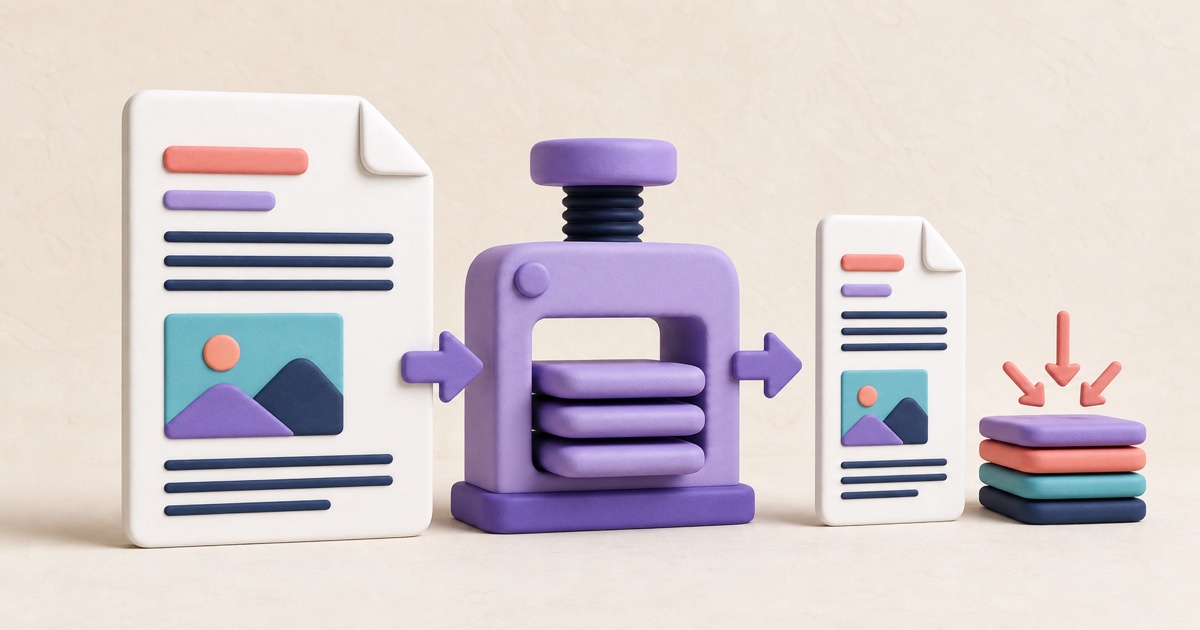
How to Compress a PDF Without Sacrificing Readability
Useful PDF compression is not just about the smallest number. Choose a method that fits the document, then check readability and important features in the result.
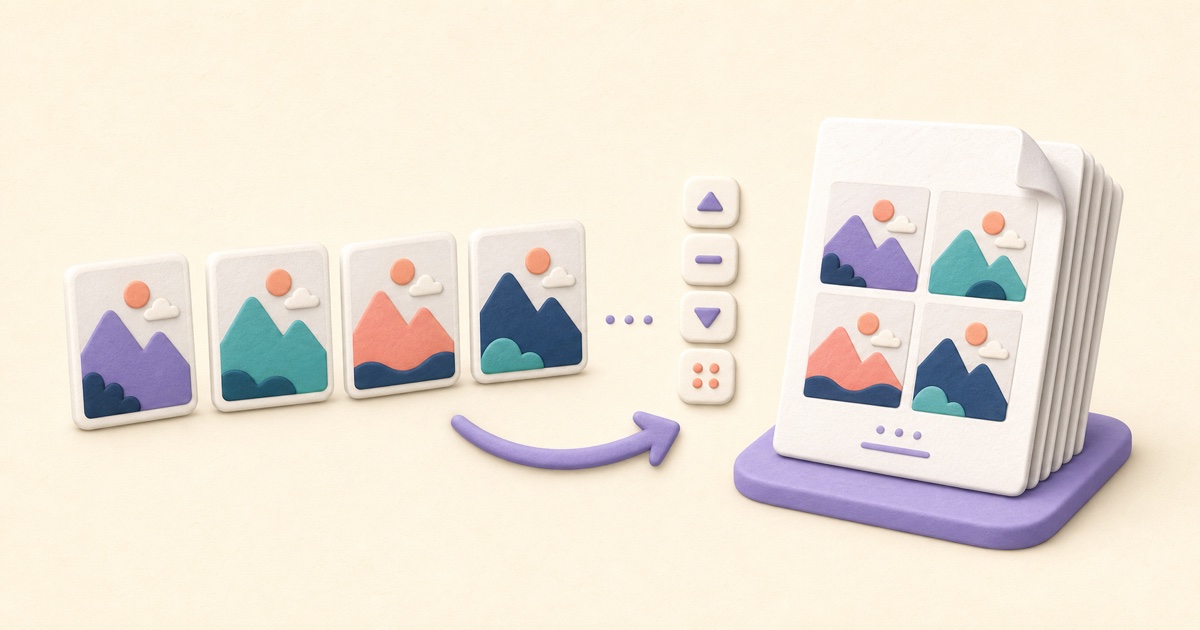
How to Combine JPG, PNG, and BMP Images into One PDF
A clean image-based PDF starts with page order, orientation, margins, and a final check that every image remains readable.
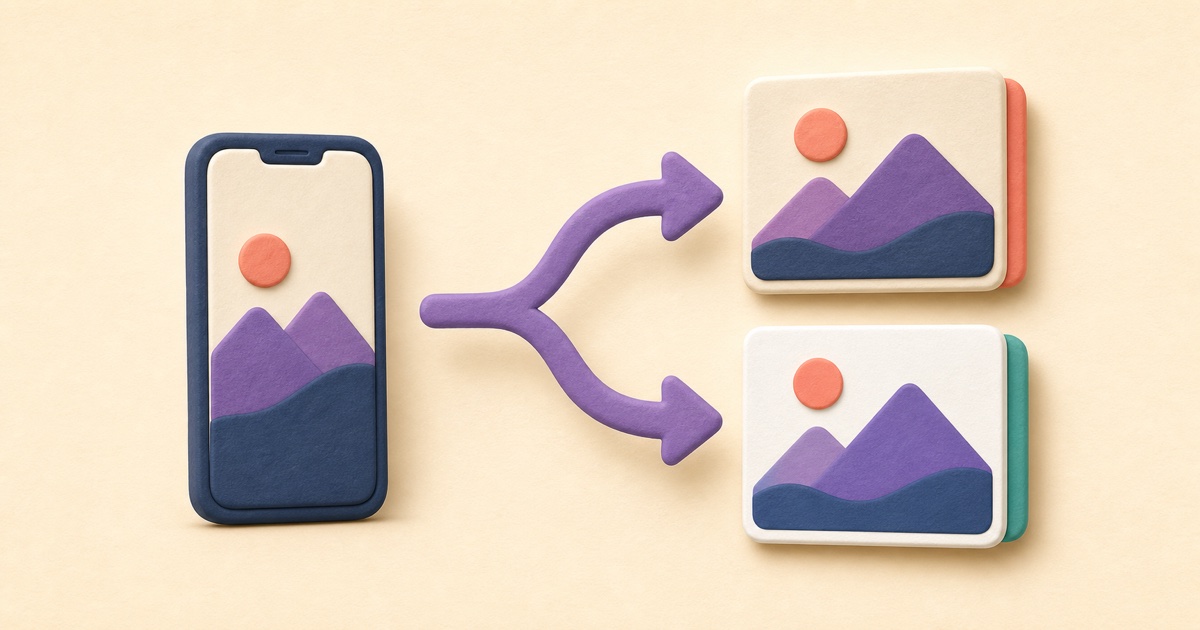
HEIC to JPG or PNG: Which Format Should You Choose?
JPG usually suits photos and broad compatibility; PNG suits lossless output. Neither conversion makes the original HEIC better.