How to Compress a PNG Without Resizing It
PNG compression can preserve every decoded color or use a smaller palette for a stronger reduction. Compare the actual size and inspect gradients, transparency, and animation.
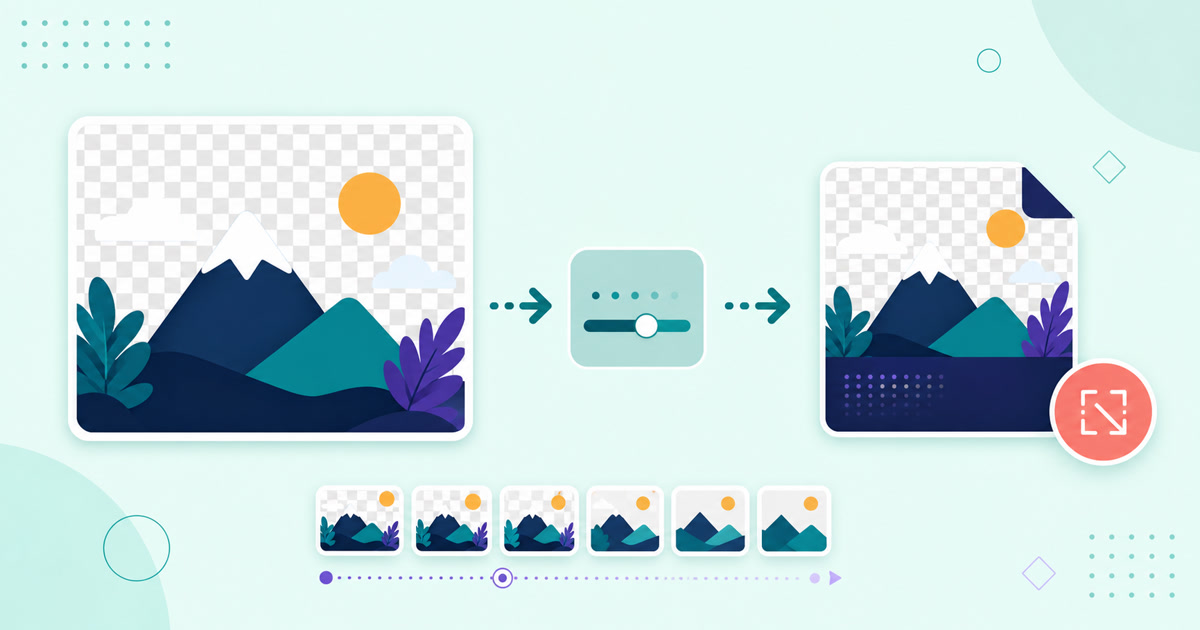
Choose between lossless and palette compression
The Compress PNG tool offers a lossless mode and smaller 256, 128, or 64 color palettes. Lossless compression preserves every decoded pixel color. A palette can reduce the file further, but subtle gradients and photographic areas may change.
Keep dimensions separate from compression
Compression changes how the pixels are encoded, not the image width or height. If a PNG is large because it contains many pixels, compression alone may have a limited effect. Keep the source dimensions when the image must remain sharp at its current display size.
Check transparency and animation
Inspect transparent edges over both light and dark backgrounds. For animated PNG files, play the downloaded result and check every frame, transition, and delay. The compressor preserves APNG frame order and timing, but palette reduction can still affect the visible colors.
Use the result only when it is smaller
An already optimized PNG may not shrink. The tool compares the result with the source and offers a download only when the new file is smaller. For photographs where exact colors and transparency are unnecessary, Compress JPEG may produce a more practical file; use Images to PDF when the images belong in a document.

How to Compress a JPEG Without Unnecessary Quality Loss
Effective JPEG compression balances visible quality and file size. Start moderately, compare the actual reduction, and inspect text and sharp edges at normal size.

How to Convert PDF Pages to PNG Images
PDF-to-PNG conversion creates a lossless image for each page. Choose resolution for the destination and inspect text, diagrams, and transparency expectations before sharing.
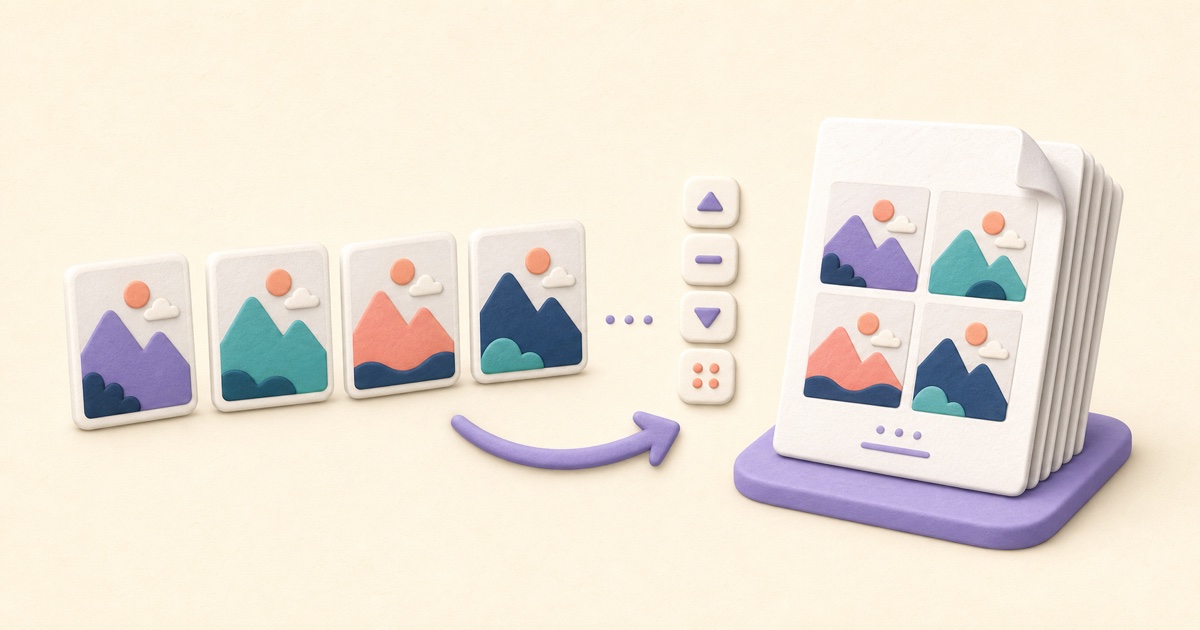
How to Combine JPG, PNG, and BMP Images into One PDF
A clean image-based PDF starts with page order, orientation, margins, and a final check that every image remains readable.