How to Find and Organize Documents in Windows File Explorer
A simple folder structure, visible file extensions, meaningful names, and a final location check prevent many everyday document mistakes.
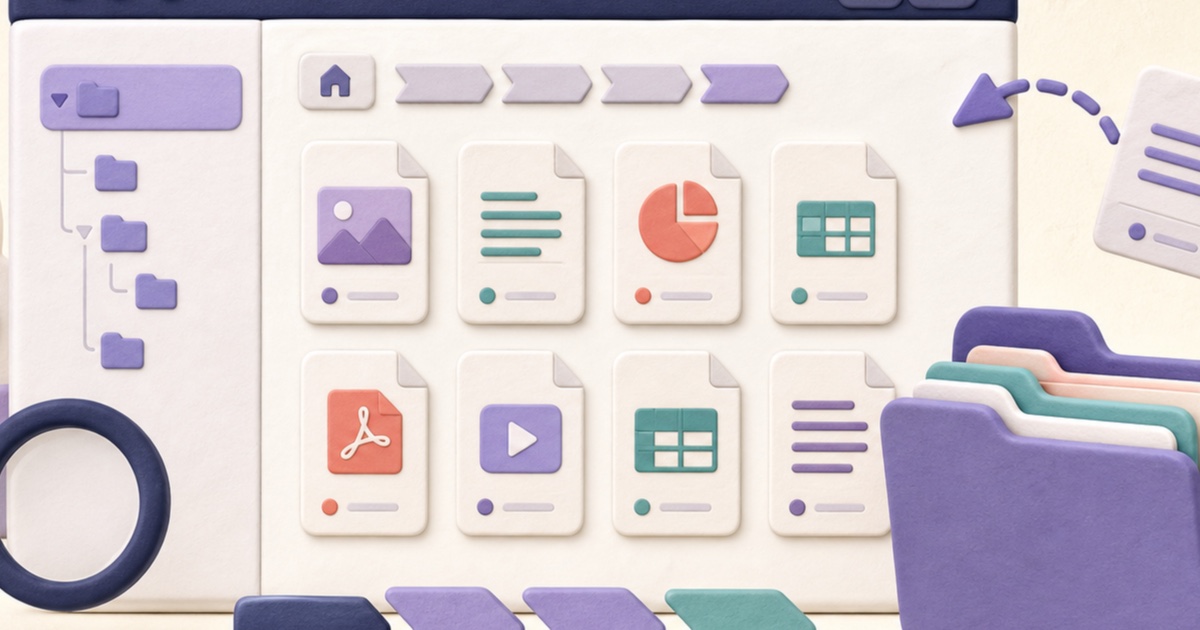
Windows File Explorer is where many document mistakes begin or get prevented: selecting an outdated copy, hiding a file extension, saving into the wrong folder, or attaching a temporary download. A short verification routine makes later PDF and image work safer.
Open File Explorer and locate known folders
Microsoft identifies Windows key + E as a shortcut for File Explorer. Its current guidance describes Home, Quick access, common folders, view controls, search, sharing, and moving files. Refer to Microsoft’s File Explorer documentation when the interface differs from your version.
Use meaningful folders and filenames
Group files by project, client, application, or date instead of leaving every download together. Include a meaningful subject and version in the filename. Avoid vague names such as “final2” when several people exchange revisions; a date or approved version label is easier to verify.
Show file extensions before converting
Extensions such as .pdf, .jpg, .png, and .docx help identify the expected format, but they do not prove the file contents are valid. Enable extension visibility when formats matter, and still use tools that inspect the actual file signature rather than trusting the name alone.
Search and sort with context
Start a search from the narrowest relevant folder. Sort by modified date when looking for a recent export, or use Details view to compare type and size. Open the likely result and inspect it instead of choosing only by filename.
Prepare files for a document workflow
- Move source files into one working folder before using Merge PDFs.
- Number image filenames in the intended order before using Images to PDF.
- Keep originals separate from generated downloads.
- Reopen the exact output from its saved location before attaching or archiving it.
Avoid destructive cleanup too early
Do not delete source documents immediately after creating a combined, compressed, or converted copy. Confirm the page count, readability, forms, links, and signatures first. Once the result is accepted and retention rules allow it, remove obsolete working files deliberately.
How to Open a PDF File on Any Device
A PDF should open consistently across common devices, but the right reader, a complete download, and a few focused checks still matter.
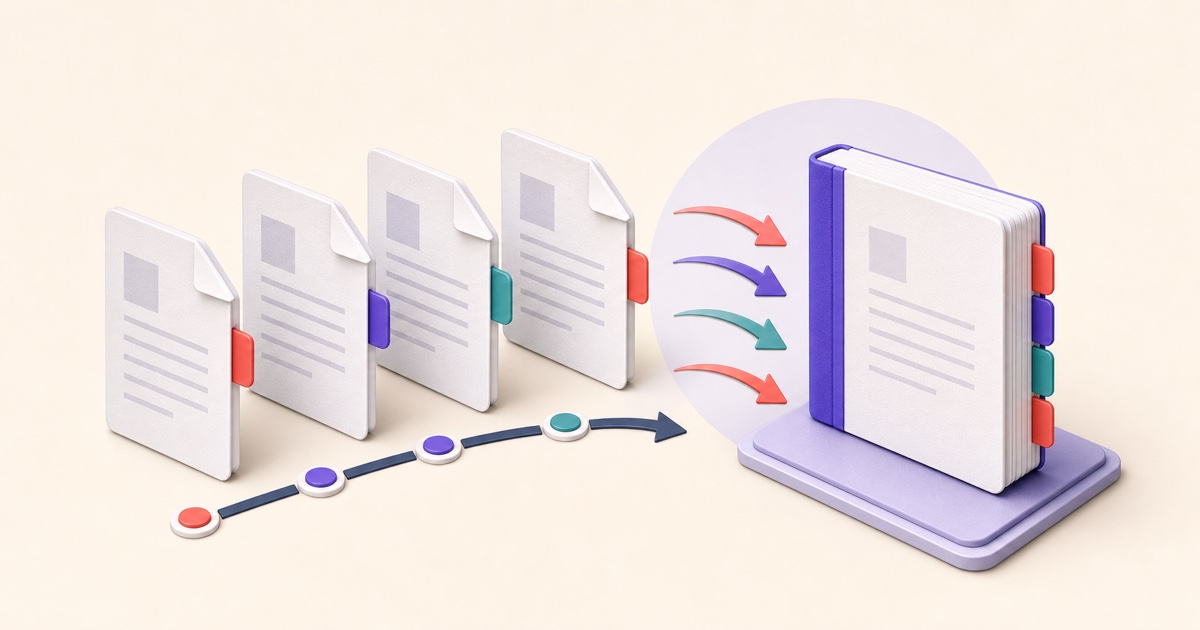
How to Merge PDF Files in the Right Order
A reliable merge starts before you click the final button. Use this workflow to prepare, order, combine, and check a multi-file PDF.

How to Combine JPG, PNG, and BMP Images into One PDF
A clean image-based PDF starts with page order, orientation, margins, and a final check that every image remains readable.