How to Open a PDF File on Any Device
A PDF should open consistently across common devices, but the right reader, a complete download, and a few focused checks still matter.
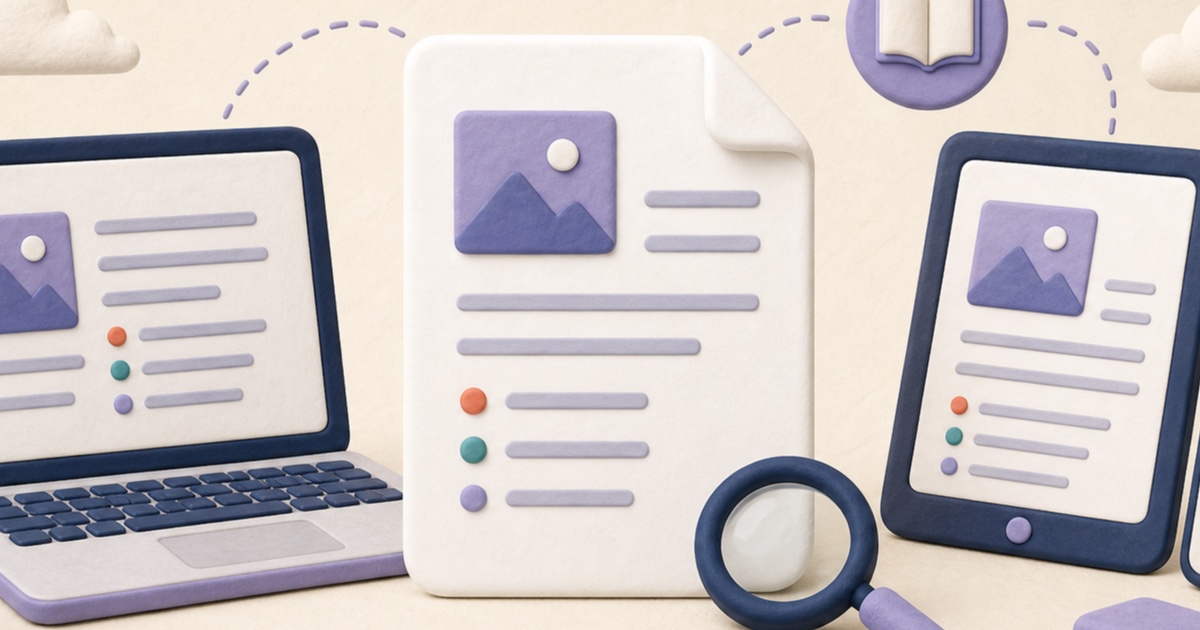
PDF is designed to keep a document’s page layout stable, but opening a file still depends on a complete download and a reader that supports the document. Start with the built-in viewer in your browser, phone, or computer. If you only need to inspect a document, the smallpdf.app PDF Reader provides page thumbnails, zoom, navigation, and temporary view rotation.
Open the file on a computer
On Windows or macOS, double-clicking a PDF normally opens the default browser or PDF application. If the wrong program opens, use the operating system’s “Open with” command and choose a PDF-capable application. Opening a local copy is more dependable than repeatedly opening an attachment preview, especially when you need to search, print, or verify every page.
Open the file on a phone or tablet
Mobile browsers, Files apps, cloud-storage apps, and email clients commonly include PDF viewing. Save the attachment first when it is large or when the connection is unreliable. Use page count and thumbnail navigation to confirm that the whole document arrived rather than relying on the first visible page.
Check common opening problems
- The file is incomplete: download it again and compare the size with the sender’s copy when possible.
- A password prompt appears: request the valid password from the document owner. If you are authorized and know it, the Unlock PDF tool can create an unprotected working copy.
- The viewer shows a blank or damaged page: try another standards-based reader before assuming the source is empty.
- Text cannot be selected: the page may be a scan. Use OCR PDF when searchable text is required.
Verify the document before using it
Check the filename, page count, first and last page, orientation, smallest important text, links, and any signature fields. A file that opens is not automatically the correct or complete version. Reopen the exact saved copy before sending, printing, signing, or archiving it.
Keep the original when making changes
Editing, unlocking, compressing, or reorganizing a PDF should create a separate result. Keep the source until the new file has been checked and accepted. That gives you a dependable fallback if an export changes interactive fields, signatures, image quality, or page structure.
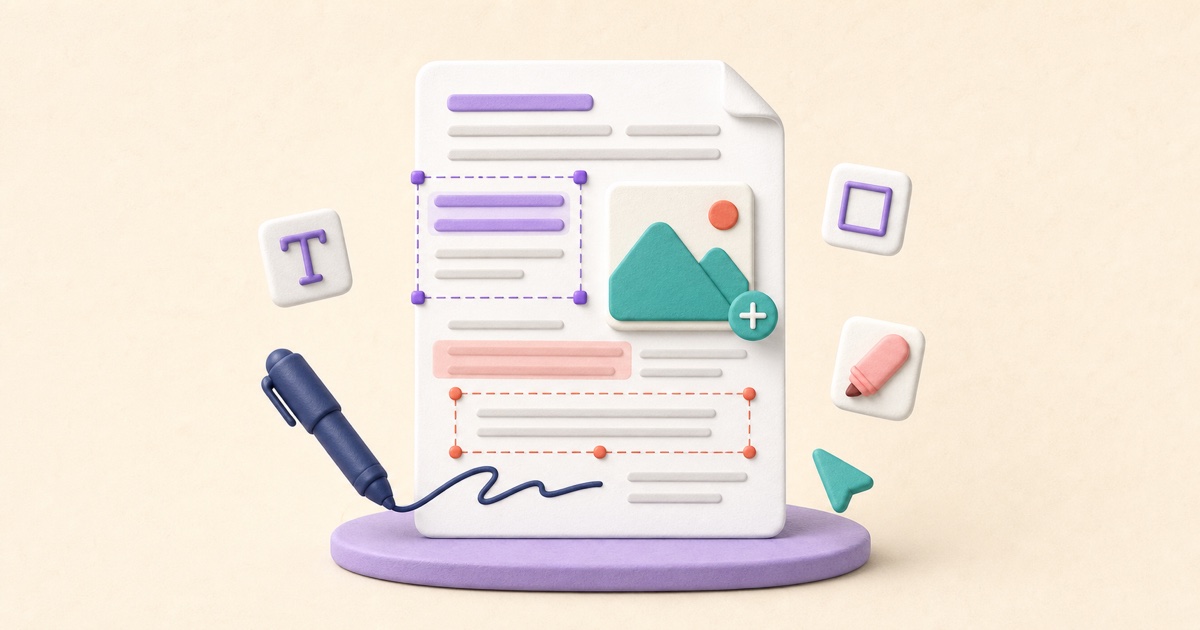
How to Edit PDF Text and Add Images or Markup
PDF editing is safer when you check whether text replacement is direct, OCR-based, or visual, review every page, and keep an untouched source.
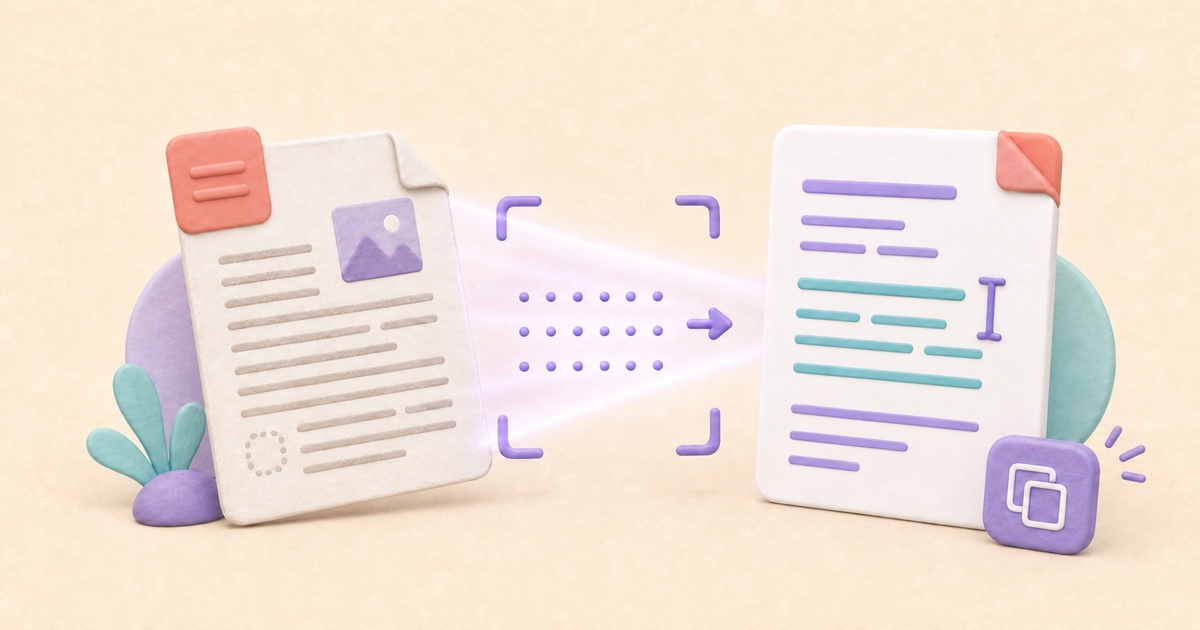
How to Extract Text from a PDF or Scanned Document
PDF-to-text conversion should read existing characters directly, recognize printed scans only when needed, and leave you with editable text that can be checked before use.

How to Unlock a PDF When You Know the Password
Unlocking a PDF removes its opening-password barrier from a new copy. Use the valid password, verify the result, and protect the unencrypted file appropriately.