How to Convert CSV to JSON with Correct Types and Headers
Reliable CSV-to-JSON conversion starts with correctly parsed rows, unique headers, and a deliberate decision about whether each cell should remain text.
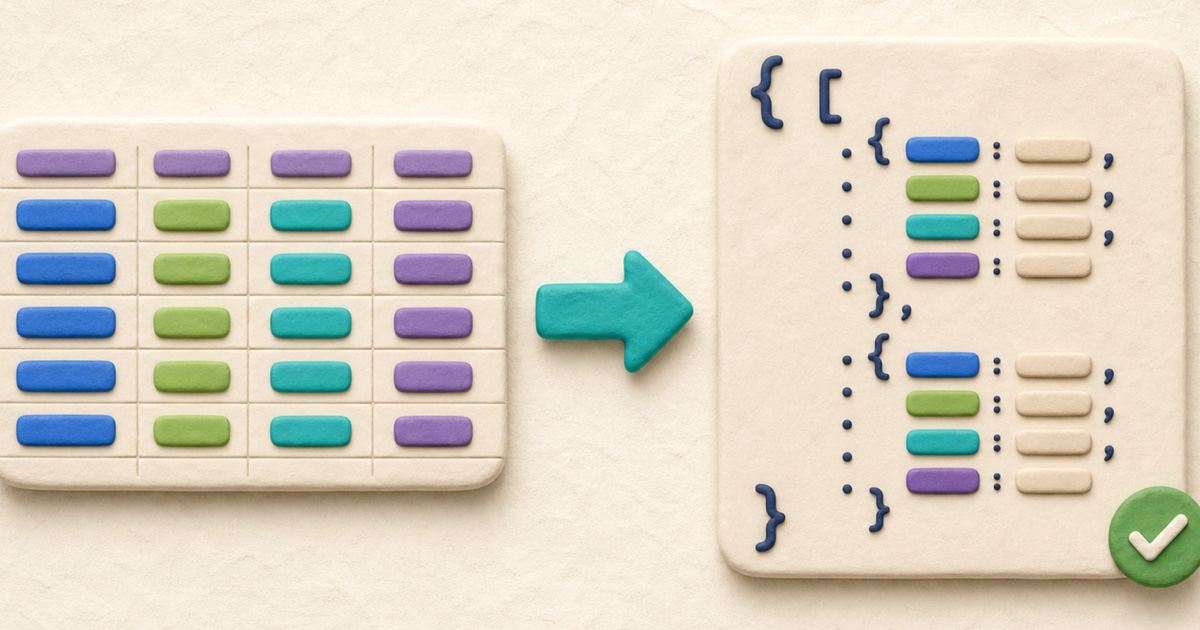
How a CSV table maps to JSON
CSV is organized into rows and fields. JSON can represent those rows either as objects with named properties or as arrays whose meaning depends on position. The most useful conversion depends on whether the first CSV row contains genuine column headings.
With the header option enabled, CSV to JSON Converter uses the first row as property names and converts every later row into an object. Without headers, every row becomes a JSON array.
name,active
Ada,true
Grace,false
With headers, the result contains objects with name and active properties. Without headers, the first row remains ordinary data alongside the other arrays.
Parse CSV before splitting rows
A dependable converter cannot simply split the source at every comma and line break. CSV fields may contain commas, quotes, and even line breaks when they are correctly quoted.
name,note
Ada,"One, two"
Grace,"Line one
Line two"
The quoted note in the second data row remains one field even though it spans two source lines. A double quote inside a quoted field is represented by two double quotes. The converter parses these rules before constructing any JSON values.
An unterminated quoted field, a quote that appears unexpectedly inside an unquoted field, or extra characters after a closing quote produces an error. Correct the CSV source instead of trying to repair the generated JSON.
Use headers that can become reliable property names
Header names are trimmed before they become JSON keys. Every header cell must have a name, and each name must be unique. Empty or repeated headers are rejected because an object cannot safely retain two different cells under the same property name.
Property names may include spaces or punctuation because JSON keys are strings. Clear, stable headings are still easier to use in APIs, scripts, and schemas. Prefer names such as customer_id or created_at when you control the source format.
Decide whether cells should remain strings
CSV does not attach a data type to a cell. The characters 00123, true, and null might be identifiers or literal text, even though they resemble other JSON types. For that reason, type detection is off by default and every cell becomes a JSON string.
When optional detection is enabled, the converter recognizes:
trueandfalseas booleans;nullas the JSON null value;- ordinary integers, decimals, and exponent notation as numbers when conversion is safe.
Unsafe large integers remain strings so they are not rounded. Values with leading zeros also remain strings, which protects ZIP codes, account references, product codes, and other identifiers whose formatting matters.
Handle blanks and uneven rows deliberately
A blank CSV cell becomes an empty JSON string, including when type detection is enabled. It does not automatically become null. If blank and null have different meanings in the destination system, choose an explicit source marker and transform it deliberately.
Rows with fewer fields are extended with empty cells so their JSON objects still align with every header. Rows with more fields expand the table width, but without a corresponding header the conversion cannot create a named property and reports that every header needs a name. Review uneven rows before conversion rather than relying on positional guesses.
Convert CSV to JSON step by step
- Open the CSV as text. Confirm the delimiter is a comma and inspect quoted fields, especially fields containing line breaks.
- Choose the header behavior. Enable the first-row option only when that row contains real, unique column names.
- Choose type detection. Leave it off for the safest text-preserving conversion. Enable it only when booleans, null, and numbers are intended.
- Select indentation. Two spaces create compact readable output; four spaces provide stronger visual separation.
- Convert the rows. Review the reported record and column counts.
- Inspect representative values. Check empty cells, identifiers, multiline text, decimal values, and non-ASCII characters.
- Copy or download the JSON. Validate it against the destination’s requirements before importing it.
Validate structure after conversion
Valid JSON syntax only proves that the output can be parsed. It does not prove that required properties exist, values use the intended types, or unexpected columns are absent. When the destination has a contract, use JSON Schema Validator after conversion.
A schema can require an identifier, restrict a status to known values, check array items, and prevent additional properties. Read the guide to validate JSON with JSON Schema before treating a converted dataset as ready for an API or import.
Compare before replacing an existing dataset
If the CSV is a new version of an existing export, use CSV Compare to review row and field changes first. If you already have an expected JSON result, format both documents consistently and use JSON Compare to check structure and values.
Comparison is especially useful after enabling type detection because a JSON string "2" and a JSON number 2 are different values even when they look similar in a table.
Final CSV-to-JSON checklist
- Quoted commas, quotes, and line breaks are valid CSV.
- The first-row setting matches the actual file.
- Header names are present, unique, and appropriate as JSON keys.
- Type detection is enabled only when inferred types are wanted.
- Long integers, leading zeros, dates, and codes were reviewed as strings.
- Blank cells have the intended meaning.
- The result matches any required JSON Schema or destination contract.
Use CSV to JSON Converter for the conversion. If you need to create a table again, follow the guide to convert JSON to CSV without losing important data.
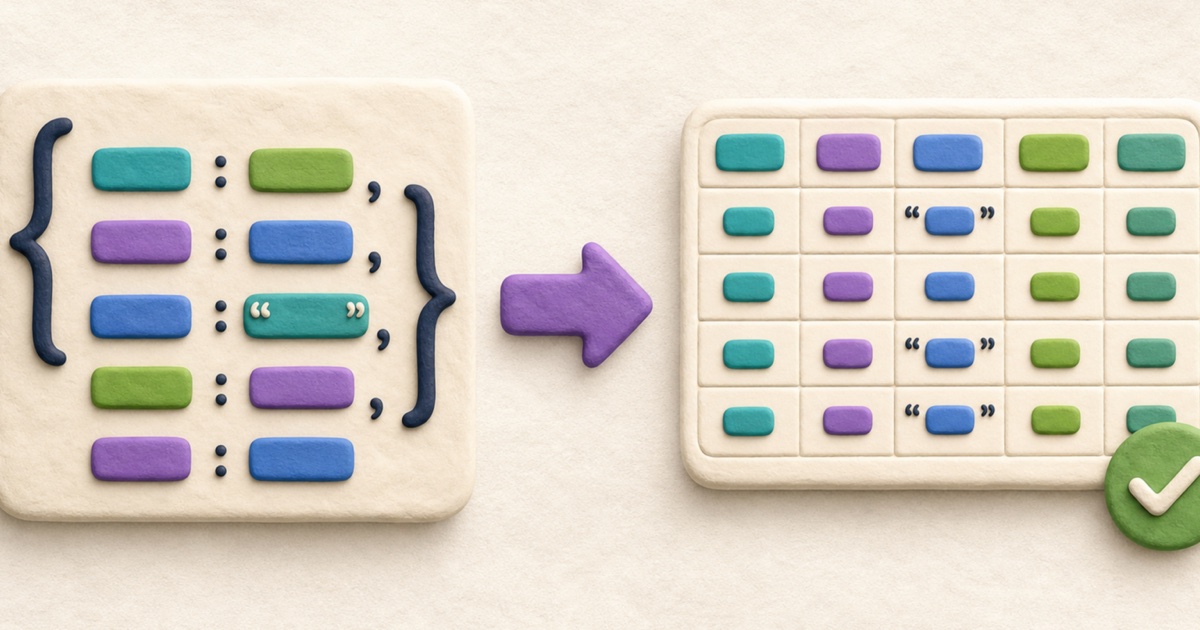
How to Convert JSON to CSV Without Losing Important Data
JSON-to-CSV conversion works best when the source describes consistent records. Review headers, nested values, blanks, delimiters, and identifiers before using the table.
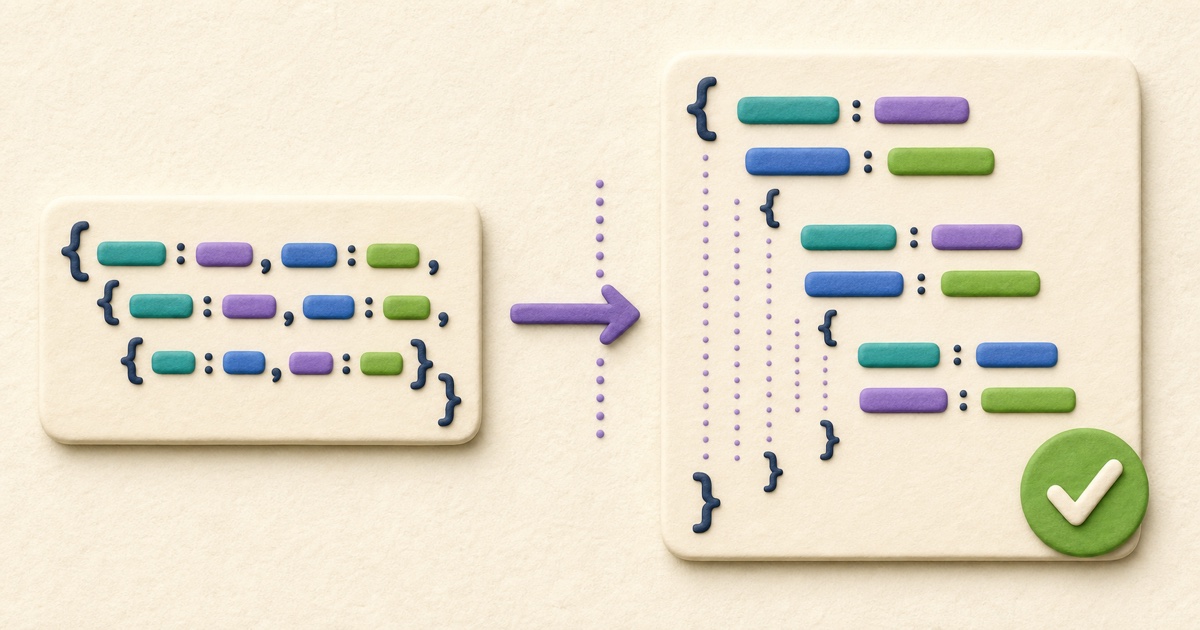
How to Format and Validate JSON Online
Reliable JSON formatting improves readability without silently changing data. Validate first, choose deliberate formatting options, and review the exact result before using it.

How to Compare CSV Files and Review Row Changes
Reliable CSV comparison parses quoted fields before reviewing row changes, while preserving the row and column order that gives the data its meaning.