How to Compare Text Files and Review Every Change
A dependable text comparison aligns the two versions, distinguishes additions from removals, and keeps small edits visible inside changed lines.

Text comparison works at two levels
A useful text comparison first aligns lines, then highlights the smaller character changes inside paired lines. The line-level result shows where content was added, removed, or replaced. Character highlighting prevents a changed date, number, punctuation mark, or short phrase from disappearing inside a long line.
This approach works for drafts, notes, logs, source files, configuration, lists, and exported data. It does not interpret the file as a particular programming language or document type. If the input is valid JSON or XML and structure matters, a format-aware tool provides a more focused result.
Choose strict or normalized matching
The Text Compare tool is strict by default. Uppercase and lowercase characters differ, and whitespace changes count. Two optional controls can reduce noise:
- Ignore case treats uppercase and lowercase forms as equal. It is useful for lists, identifiers in case-insensitive systems, and prose reviews where capitalization is not part of the requirement.
- Ignore whitespace disregards whitespace characters when matching lines while preserving the original display text. It is useful when indentation or spacing changed without changing the content.
Turn on only the rule you intend to ignore. Case can be meaningful in passwords, source code, paths, and case-sensitive identifiers. Whitespace can be meaningful in Python, Makefiles, fixed-width data, Markdown code blocks, and other syntax-sensitive formats.
How to compare two text files step by step
- Confirm the baseline. Label the earlier or authoritative version as Original and the candidate version as Changed.
- Paste or load both sides. Choose supported UTF-8 text, source, log, data, or configuration files, or paste content directly into the editors.
- Compare strictly first. The initial exact result tells you everything that changed. If it is dominated by capitalization or spacing, decide whether ignoring that category is valid.
- Apply one normalization rule at a time. Compare again after turning on Ignore case or Ignore whitespace so you can see which noise each option removes.
- Read the summary and every changed block. Counts estimate the size of the review; highlighted characters reveal the specific edit.
- Switch views when useful. Use side-by-side for parallel reading and unified for a compact sequence or clipboard handoff.
Understand each result status
- Unchanged: the lines match under the active case and whitespace rules.
- Changed: a removed line and an added line are paired at the same point, with edited characters highlighted.
- Removed: a line exists only in Original.
- Added: a line exists only in Changed.
A large insertion can shift later content without meaning that every following line was rewritten. Read nearby unchanged lines as anchors. If a replacement block pairs lines imperfectly, the unified view can make the underlying removal and addition sequence clearer.
Side-by-side versus unified comparison
Use side-by-side for contextual review
The aligned columns make it easy to compare paragraphs, log entries, configuration sections, or functions. Separate line numbers preserve the position on each side when additions cause the two versions to diverge.
Use unified view for compact changes
Unified view places the change sequence in one column. Minus markers identify removed text and plus markers identify added text. It is useful when discussing a small patch or copying a result, but it can be harder to scan when both versions contain long lines.
Handle file encoding and line endings deliberately
Uploaded files must contain valid UTF-8 text. A file extension alone does not prove that its content is text, so binary or invalid UTF-8 input is rejected. If an older file uses a different encoding, convert a copy to UTF-8 with a trusted editor before comparing it.
Windows, macOS, and Unix-style newline sequences are normalized for comparison. This prevents a file-wide result caused only by CRLF versus LF storage. Exact character review within each logical line remains available.
The workspace also applies explicit size, character, and line limits so a highly divergent file cannot monopolize the page. For a larger source, compare a relevant section or use a version-control tool designed for repository-scale diffs.
Review common text-comparison scenarios
Contracts and policy drafts
Compare the complete clauses, not only the highlighted phrase. A changed qualifier such as “may,” “must,” “before,” or “after” can alter the effect of the sentence. Use the recipient’s approved review process for legally significant documents.
Logs and diagnostic output
Timestamps, request IDs, durations, and machine-specific paths may create expected noise. Identify those fields before deciding that two runs behave differently. Do not remove unexpected errors merely because they complicate the diff.
Configuration and source files
Whitespace and case rules depend on the format. Compare strictly unless you know the receiving parser treats those differences as insignificant. For JSON and XML, use their dedicated format-aware tools when you want parsing rules rather than general text rules.
Lists and exported data
Line comparison preserves order. If list order is intentionally irrelevant, sorting clean copies before comparison may help—but keep the originals and confirm that duplicates are not lost.
Avoid common review mistakes
- Do not enable ignore options merely to make a result shorter.
- Do not assume a low change count means low risk.
- Do not copy secrets, personal data, or private log values into a public issue.
- Do not overlook added or removed blank structure when whitespace is meaningful to the format.
- Do not treat a visual diff as automatic approval; verify the changed version in its destination system.
Final text comparison checklist
- The Original and Changed versions are in the intended order.
- Ignore case and Ignore whitespace reflect the real review requirement.
- Every changed, added, and removed line has been checked in context.
- Numbers, dates, punctuation, and short qualifiers have received extra attention.
- The unified result contains no information that should not be shared.
- The final file has been opened or tested in the system that will use it.
For structured data, continue with the JSON comparison guide or the XML comparison guide. If the goal is to turn plain text into a document rather than compare it, use TXT to PDF.
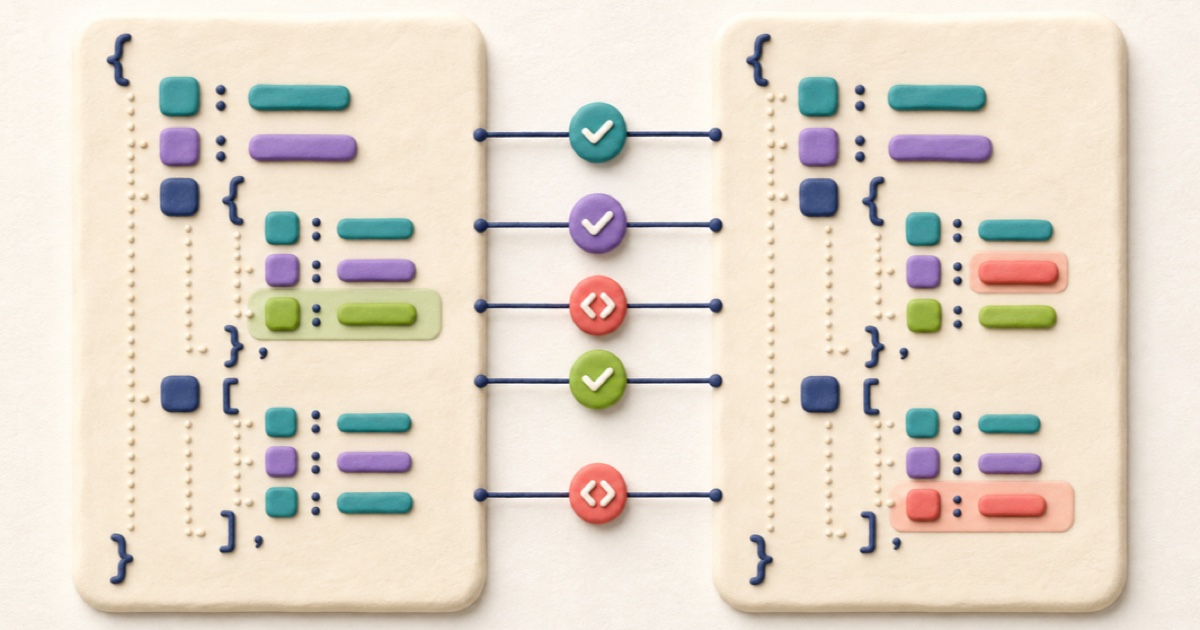
How to Compare JSON Files and Find Meaningful Changes
A useful JSON comparison separates structural changes from harmless formatting so you can focus on values, properties, and array order.

How to Compare CSV Files and Review Row Changes
Reliable CSV comparison parses quoted fields before reviewing row changes, while preserving the row and column order that gives the data its meaning.

How to Compare XML Files Without Formatting Noise
XML comparison is clearest when formatting noise is removed but element order, namespace identity, attributes, and meaningful text remain visible.